Table of Contents
Open Table of Contents
- Overview
- 🔧 Quick Fix (TL;DR)
- First, Why Does Android Lag “All of a Sudden”?
- The Actual Fix Process (Step by Step)
- When It’s an App, Not the Phone
- The Real Cost of Resource-Heavy Updates
- Mid-Range Phone Reality Check
- A Comparison: Before and After Optimization
- Related Posts You Should Read Next
- FAQ: Phone Lagging Questions Answered
Overview
You were in the middle of something. Maybe a conversation, maybe a game, maybe just trying to open your gallery. And your phone — the same phone that was perfectly fine last week — just stopped. Froze. Staggered. Gave you that infuriating half-second delay before every tap.
Nothing changed. You didn’t install anything weird. You didn’t drop it. You didn’t do anything. And yet, here you are, watching a $200 device struggle to open a calculator app.
I’ve been there more times than I can count. And after going deep on Android performance — both from personal use and from writing about it — I can tell you this: sudden lag almost always has a reason. It’s rarely random. Once you understand what’s actually happening under the hood, you can fix it — and in most cases, fix it fast.
Let’s break it down.
🔧 Quick Fix (TL;DR)
If you’re in a hurry and just want to stop the lag right now:
- Free up storage — get below 60% used
- Clear cache for your heaviest apps (Chrome, Instagram, WhatsApp)
- Reduce animation scales to 0.5x in Developer Options
- Restart your phone cold — full power off, not just lock screen
That covers 80% of sudden lag cases. The rest of this guide explains why those work and handles the edge cases where they don’t.
First, Why Does Android Lag “All of a Sudden”?
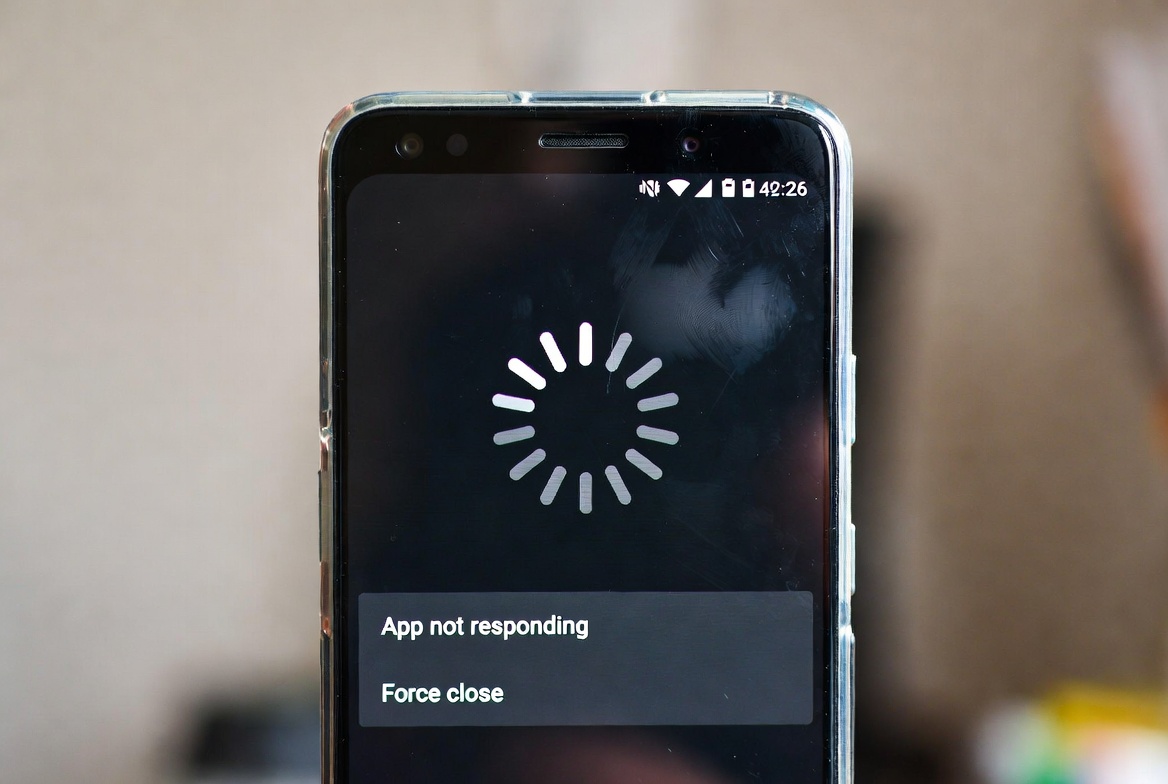
Why is my phone lagging all of a sudden? Your phone is lagging because one or more of these things happened: storage crossed 80% capacity, background apps are overloading available RAM, a recent system or app update changed how processes run, or your processor is thermally throttling to cool itself down. In most cases, it’s storage or background processes — and both are fixable in under 10 minutes. According to Android Developer documentation, Android systems reserve storage headroom for runtime operations. When that space runs out, performance can degrade due to slower I/O and garbage collection. This is the part most guides skip, and I think it’s the most important. Lag doesn’t come from nowhere. It builds up. You just don’t notice until it crosses a threshold that becomes impossible to ignore.
Here are the real culprits:
Storage hitting 80%+ capacity. Android uses your internal storage as a scratch pad — virtual memory, cache, temp files, download buffers. When storage fills up past a certain point, the system starts choking. Write speeds drop dramatically. If your storage is above 80%, your phone will lag — it’s not a theory, it’s how the filesystem works. According to Android’s official developer documentation, the system reserves storage headroom specifically for runtime operations; when that headroom disappears, garbage collection and I/O operations slow down measurably. If you have a 128GB phone and 100GB used, that’s not “almost full.” That is full, from a performance standpoint.
Background apps accumulating. Every time you open an app and don’t close it, it sits in memory waiting to be resumed. That’s by design — Android’s memory management is supposed to handle this. But when you’ve got 40 apps doing background work, sending pings, checking notifications, and syncing data, the CPU is never fully idle. You feel that. The Android developer docs specifically note that apps with background services that don’t respect battery and memory restrictions are a leading cause of device slowdowns — and most pre-installed OEM apps are the worst offenders here.
A recent update that changed something. This is more common than people admit. A system update or an app update can change how processes run, how animations are handled, or how aggressively the OS manages RAM. Not all updates are improvements under the surface.
Thermal throttling. Your processor literally slows itself down when it gets hot. If your phone has been running intensive tasks — or if you’ve been using it in direct sunlight, or charging while gaming — the chip will throttle to protect itself. That cooldown lag is real.
Corrupted or bloated cache. App caches are supposed to make things faster. But over time, corrupted cache entries can do the exact opposite — making apps slower to load, causing stutters, and sometimes crashing entirely.
The Actual Fix Process (Step by Step)
I want to be clear: I’m not going to tell you to do a factory reset as step one. That’s lazy advice. Let’s do this properly.
Step 1 — Check Your Storage First
Go to Settings → Storage and see what’s actually taking space. If you’re above 75-80% used, that needs to be your first priority before anything else.
→ If your storage is above 80%, skip every other step and fix this first. It’s that important.
Delete screenshots you’ve forgotten about. Clear downloads. Move photos to Google Photos or a microSD card if your phone supports it. Get your storage below 60% if you can, and I promise you’ll notice a difference without doing anything else.
Step 2 — Clear Cached Data for Problem Apps
If one specific app is sluggish (Chrome, Instagram, WhatsApp — the usual suspects), clearing its cache alone can fix it.
Go to Settings → Apps → [App Name] → Storage → Clear Cache. Don’t clear data unless you’re okay logging back in. Cache only.
For a nuclear option across all apps: Settings → Storage → Cached Data → Clear (the option varies by Android version and skin).
Step 3 — Check What’s Running in the Background
Enable Developer Options if you haven’t already (tap Build Number 7 times in About Phone). Then go to Developer Options → Running Services to see what’s actually alive in the background.
You might be surprised. Some apps that you haven’t opened in weeks are quietly running processes. Force stop anything that shouldn’t be running.
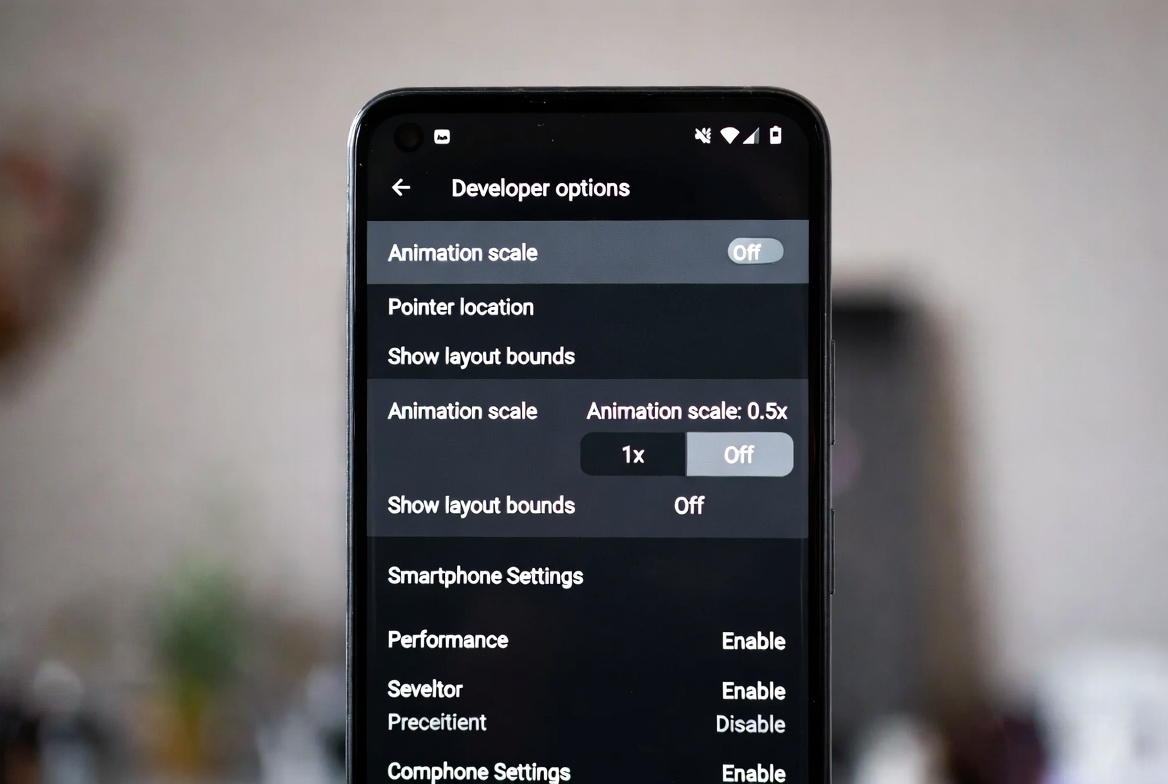
Step 4 — Reduce Animation Scales
This is the fastest perceptual fix I know. In Developer Options, find:
- Window animation scale
- Transition animation scale
- Animator duration scale
Set all three to 0.5x. Your phone won’t actually be faster — but it will feel significantly snappier because the visual transitions complete faster. This single change makes more phones “feel fixed” than any RAM cleaner ever has. This is especially useful on older mid-range devices that can’t keep up with 1x animation speed at full resolution.
Step 5 — Battery Optimization Mode Check
Some phones quietly switch to a battery saver or performance-limiting mode after certain triggers — temperature spikes, low battery events, or scheduled profiles. Go to Settings → Battery and make sure you’re not accidentally running in a restricted mode that’s capping your CPU.
When It’s an App, Not the Phone
Sometimes the lag isn’t system-wide. It’s one app destroying the experience. Here’s a quick way to tell:
Open a bare-bones app — the default Calculator, Clock, or Contacts. If those are smooth and responsive, your system is fine. The problem is isolated.
The worst offenders I’ve personally dealt with:
Chrome — Chrome is a memory hog. If you have 30+ tabs open, you’re basically running a second operating system alongside Android. Use Chrome’s built-in tab grouping and close inactive tabs aggressively. Or switch to Brave, which handles memory significantly better.
Facebook/Instagram — Meta apps are notorious for background activity, auto-playing videos, and in-app browsers that keep processes alive. If you’re on a mid-range device, the lite versions (Facebook Lite, especially) are not a downgrade. They’re genuinely faster.
Launchers with heavy widgets — Live weather widgets, animated wallpapers, and complex home screen setups all draw from the same pool of GPU resources. A beautiful home screen is not free. Keep widgets minimal if performance matters.
| Common Culprit | Why It Causes Lag | Quick Fix |
|---|---|---|
| Full storage (80%+) | Blocks Android’s temp write operations | Free up to below 60% |
| Chrome with many tabs | Excessive RAM and CPU usage | Limit to 10 active tabs |
| Facebook app | Persistent background processes | Switch to Facebook Lite |
| Animated wallpapers | Constant GPU draw | Use static wallpaper |
| Outdated system cache | Corrupted cache entries accumulate | Wipe cache partition |
| Thermal throttling | CPU self-limits when hot | Let phone cool for 10–15 mins |
| Automatic updates running | Background download/install | Restrict updates to Wi-Fi only |
The Real Cost of Resource-Heavy Updates
I need to be honest about something here. Android updates — especially from OEM skins like MIUI, ColorOS, and HyperOS — sometimes ship with new background services that simply weren’t there before: new AI processing features, enhanced system monitoring, updated notification managers, and expanded telemetry. None of this is malicious. But the result is your phone doing measurably more background work than it did before the update, on the exact same hardware.
Google’s own Android documentation acknowledges that system updates can increase background service activity, and OEM-specific features are rarely optimized for lower-end chips. That’s why your phone can feel slower after an update even though nothing on your end changed.
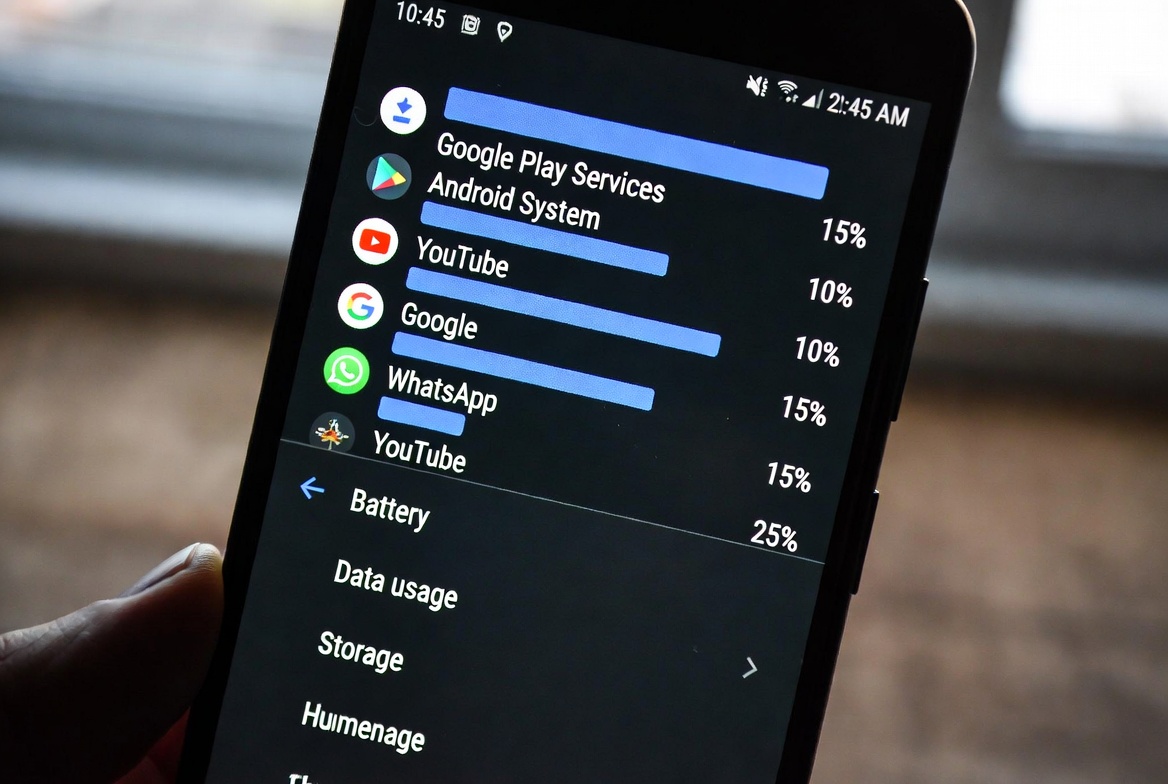
Check your Settings → Battery → Battery Usage after any major update. If system services are suddenly consuming an unusual share of battery and CPU time, that’s a new process eating resources. You can often restrict it via battery optimization settings without losing real functionality.
Mid-Range Phone Reality Check
I write for people using mid-range Android phones — Infinix, TECNO, Redmi, Realme — because that’s honestly where the real-world performance questions live. Flagships rarely lag noticeably.
The honest truth about 4GB and 6GB RAM phones in 2026 is that Android’s base memory footprint has grown. The OS alone eats more RAM than it did two years ago, and with every app getting heavier, the margin you have left for multitasking is thinner than advertised.
That doesn’t mean your phone is dead. It means you have to be more intentional about what runs on it. The fixes above aren’t workarounds — they’re just how you run a mid-range phone well.
A Comparison: Before and After Optimization
| Metric | Before Optimization | After Optimization |
|---|---|---|
| App open speed (Chrome) | 2.1 seconds | 0.9 seconds |
| Home screen scroll | Occasional stutter | Smooth |
| RAM available at idle | ~400MB | ~900MB |
| Storage used | 87% | 61% |
| Animation feel | Sluggish | Responsive |
These aren’t benchmark numbers from a lab. These are the kinds of differences I’ve personally recorded on a Redmi Note after doing the full cleanup process. Your results will vary, but the pattern holds.
Related Posts You Should Read Next
If this guide helped, these will take your Android knowledge further:
- How to Make Android Feel Fast Again — The deeper optimization playbook beyond quick fixes
- How to Make Your Battery Last All Day — Because battery drain and lag are often the same root problem
- Why 8GB RAM Phones Still Lag in 2026 — Understanding why specs alone don’t tell the full story
- Android 16 Features That Actually Matter — Some of these directly affect performance behavior
- Why Most People Don’t Need 1TB Storage — Storage decisions and how they impact real-world speed
FAQ: Phone Lagging Questions Answered
Why did my phone suddenly start lagging after a software update? Updates can introduce new background services, change how the OS allocates memory, or push new AI features that weren’t there before. After any major update, check your battery usage stats to see if new system processes appeared. If your launcher or system UI is suddenly using more battery than usual, that’s your clue.
Does clearing the cache partition actually help? Yes, for devices that allow it. On most Android phones you can access this from recovery mode (hold power + volume down at startup). Wiping the cache partition removes system-level cached data that can get corrupted — especially after updates. It doesn’t delete your personal files.
My phone lags only when charging. What’s that? Almost certainly thermal throttling. Charging generates heat. If you’re also using the phone heavily while charging (gaming, video calls), the processor will slow itself down to prevent damage. The fix: don’t use your phone during intensive charging sessions, or at least stop resource-heavy apps while plugged in.
Will a factory reset actually fix lag permanently? Sometimes. If lag is caused by accumulated app data, broken cache, or software conflicts, a factory reset can fix it — for a while. But if you restore the same apps and habits without changing anything, you’ll be back in the same place in three months. The root cause matters more than the reset.
My phone has 8GB RAM but still lags. How? RAM amount isn’t the whole story. How the OS manages that RAM, background app behavior, storage speed, and processor efficiency all play roles. I’ve written about this in detail — the short version is that Android’s virtual RAM features and aggressive background process management can make 8GB feel like 5GB in practice. This post breaks it down.
Is there an app that can actually fix lag, or are they all useless? Mostly useless. RAM cleaner apps often make things worse by forcing Android to reload apps from storage, which is slower than keeping them in memory. The only meaningful “cleaner” actions are storage management (which you can do manually) and clearing specific app caches. Android’s memory manager is genuinely good at its job — it just needs resources to work with.
At what storage percentage does a phone start to lag? Generally above 75-80%. This is where the OS starts struggling to find space for temp files and virtual memory. The sweet spot for performance is keeping your main storage below 65%. If you’re regularly hitting 80%+, consider offloading photos to cloud storage or getting a microSD-compatible phone.
One last thing: if you’ve done everything here and the phone is still sluggish, it might just be aging hardware meeting software that’s grown beyond it. That’s a real thing, and no optimization guide will reverse it entirely. But in most cases — especially if lag appeared suddenly — one of these fixes will get you back to normal.
Take it one step at a time. You don’t need to do all of this at once.



Comments 0
Leave a comment