Table of Contents
Open Table of Contents
- Overview
- If You’re in a Hurry — Do This First
- First, Understand Why Your Phone Slows Down
- Step 1 — Clear the Dead Weight From Your Storage
- Step 2 — Enable Developer Options and Adjust Animations
- Step 3 — Audit Your Background App Activity
- Step 4 — Rethink Your Launcher
- Step 5 — Stop Letting Apps Update Automatically in the Background
- Step 6 — Handle Widgets and Live Wallpapers Ruthlessly
- Step 7 — Restart Your Phone. Actually Restart It.
- Step 8 — Check for Software Updates (and Be Strategic About Them)
- Step 9 — Disable or Uninstall Bloatware You’ll Never Use
- What Most People Get Wrong About Slow Android Phones
- Why Newer Phones Actually Feel Faster (It’s Not Just the Chip)
- Quick Reference: What Works vs. What’s a Myth
- How Long Until You Notice a Difference?
- Frequently Asked Questions
Overview
Let me be honest with you — I’ve picked up phones that cost less than ₦100,000, and I’ve used flagships that cost more than some people’s rent. And across all of them, one thing stays true: every Android phone slows down if you don’t take care of it.
It’s not always a hardware problem. It’s not always that your phone is “old.” Most of the time, it’s software rot, bad habits, and manufacturers quietly pushing your phone harder than it should be pushed. I’ve fixed this on Infinix devices, on Xiaomi phones, on Samsung mid-rangers — and the approach is almost always the same.
This guide covers how to fix a lagging Android phone in 2026 — whether you’re searching “android phone slow fix,” wondering why your phone is lagging, or just looking to speed up Android without a full reset. No factory reset required. No paid apps. Just clean, deliberate steps that actually move the needle.
If You’re in a Hurry — Do This First
Before anything else, here’s your quick-fix checklist. These five things alone will make a noticeable difference on most Android phones:
- Free up storage to at least 20% capacity
- Set all animation scales to 0.5x in Developer Options
- Restrict background activity on your top 5 heaviest apps
- Remove widgets and switch to a static wallpaper
- Fully restart your phone (not just lock the screen)
Done those? Good. Now read the full guide — because the deeper fixes are where the real difference lives.
First, Understand Why Your Phone Slows Down
Before you start tapping through menus, it helps to know why this happens. Android phones slow down for a few main reasons:
Storage is full or nearly full. Android needs free space to write temporary files, swap data, and run processes. When your internal storage dips below 10–15%, the system starts stuttering. You’ll feel it in app launches, keyboard lag, even scrolling.
Background apps are eating RAM. A lot of people think more RAM means the phone handles everything better. That’s true — but it doesn’t mean you should let 30 apps run in the background. RAM-hungry apps (social media especially) will constantly fight each other for resources. Phones with under 4GB RAM in 2026 feel this particularly hard, because modern apps — WhatsApp, Chrome, Instagram — are simply built heavier than they were three years ago.
The launcher or system animations are too heavy. Some manufacturers ship phones with beautiful but expensive animations. Those transitions look great in a store demo but add genuine latency every time you open an app.
Your cache has grown dirty. App caches are supposed to help load things faster. But when they accumulate unchecked over months, they start doing the opposite — fragmenting data, slowing reads, causing micro-freezes.
Your phone is running processes you never asked for. Bloatware, pre-installed apps running in the background, OEM services — they all take a slice of your CPU and RAM whether you use them or not.
Now that you understand the why, let’s fix it.
Step 1 — Clear the Dead Weight From Your Storage
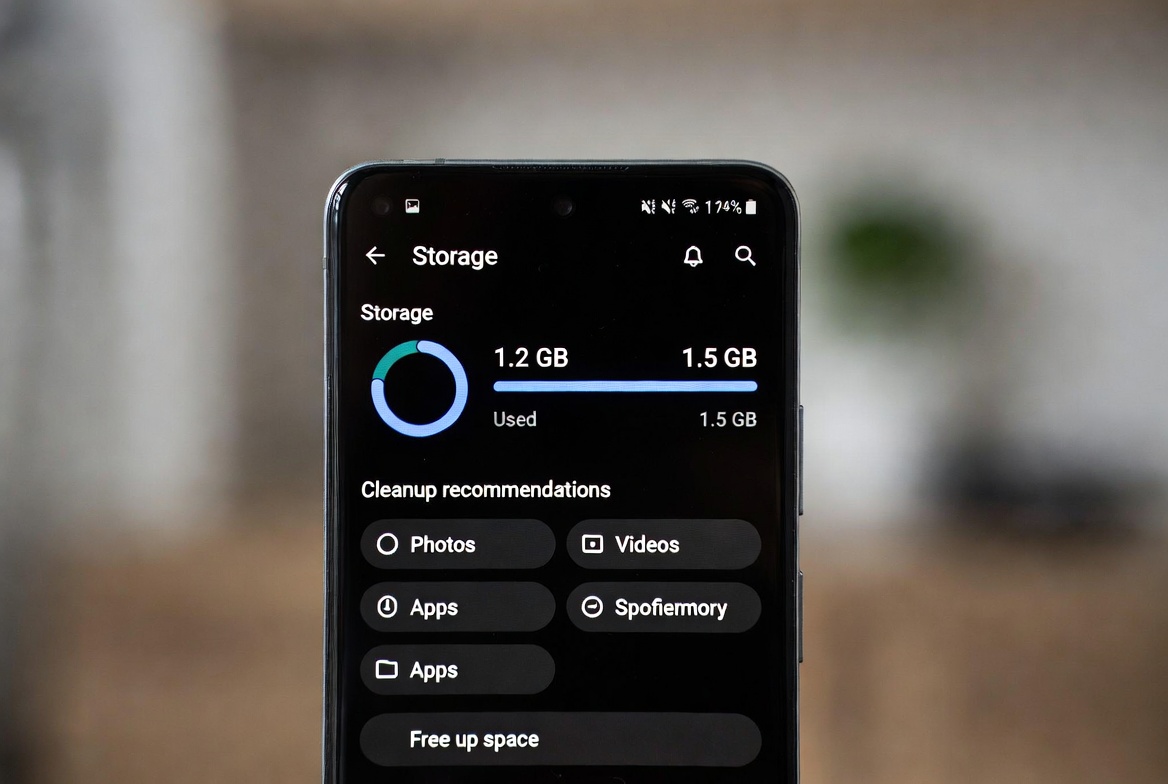
Open your Settings → Storage and look at the breakdown honestly. If you’re sitting at 85–90% capacity, that’s your primary issue right there.
Delete photos and videos you’ve already backed up to Google Photos or any cloud service. Move large files — downloads, APKs, old voice notes — to a microSD card if your phone supports it. Clear the Downloads folder entirely; most people have hundreds of megabytes of forgotten files sitting there.
Then go into Settings → Apps, sort by storage size, and start clearing the cache on your heaviest apps. WhatsApp alone can build up between 1–3GB of cache over several months of active use — photos, voice notes, video previews that never get deleted automatically. Instagram and Chrome aren’t far behind. Clearing cache doesn’t delete your data, it just removes temporary files the app will rebuild smarter.
Target: get yourself to at least 20–25% free space. That’s the breathing room your system actually needs.
Step 2 — Enable Developer Options and Adjust Animations
This is the single biggest instant change you’ll feel on any Android phone. Most people don’t know it exists.
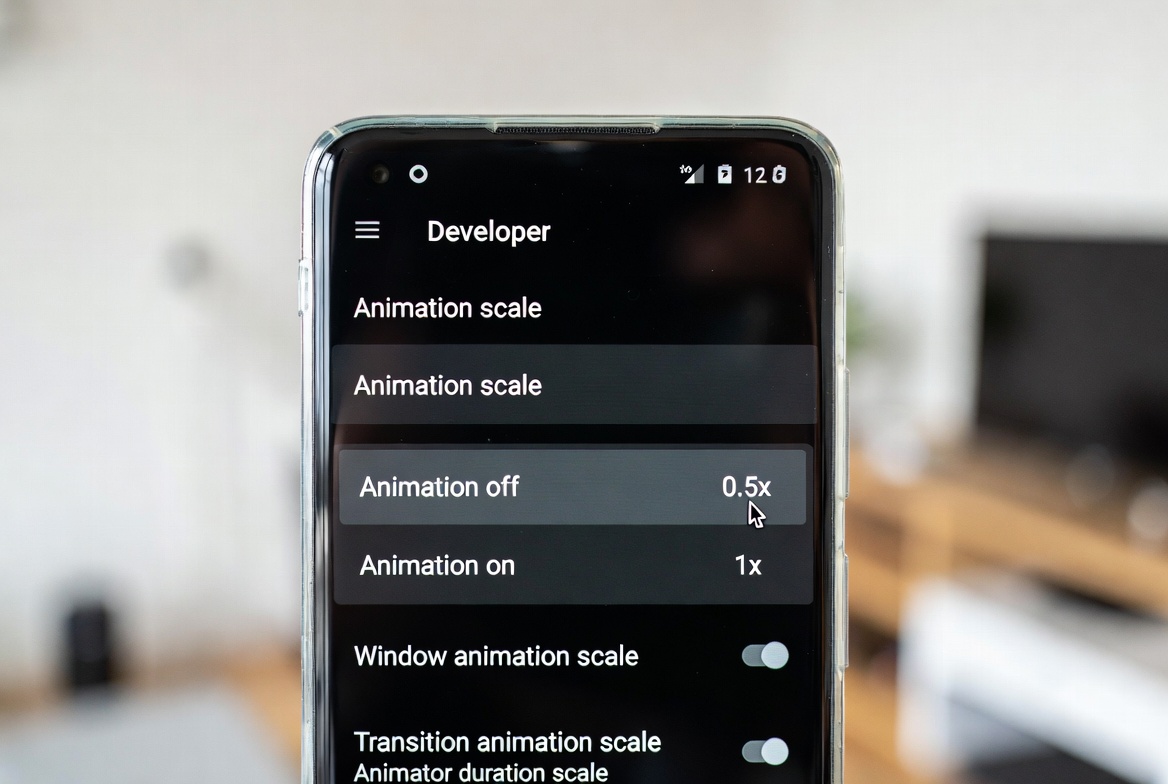
Go to Settings → About Phone → Build Number and tap it seven times quickly. You’ll unlock Developer Options. Now go back to Settings → Developer Options and scroll until you find three settings:
- Window animation scale
- Transition animation scale
- Animator duration scale
By default, these are set to 1x. Change all three to 0.5x. Your phone will feel immediately more responsive — not because anything changed with raw performance, but because the visual feedback between your taps and the result is now twice as fast. It’s a psychological change that has a very real impact on how fast the phone feels — and it works equally well on a ₦60,000 Tecno as it does on a mid-range Samsung.
If you want to go further, set all three to off (0x) — animations disappear entirely. Some people love it, some find it disorienting. I keep mine at 0.5x.
Step 3 — Audit Your Background App Activity
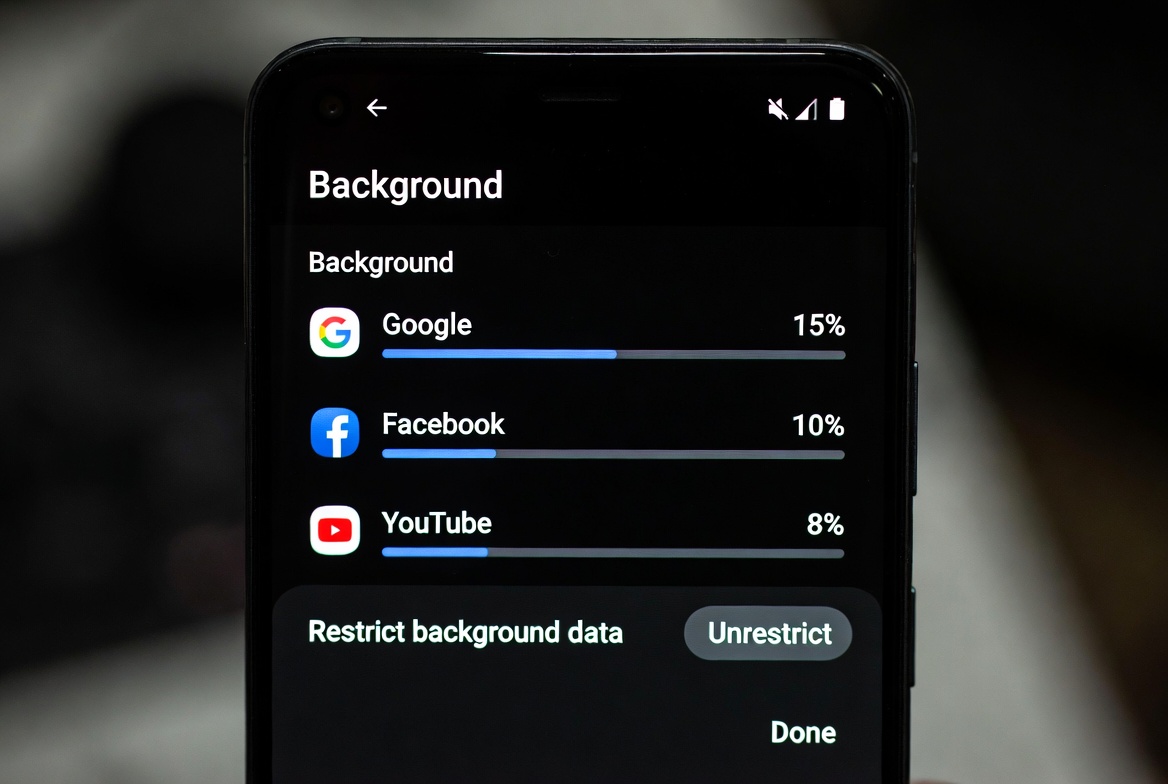
Go to Settings → Battery and look for something called Battery Usage, Background Activity, or (on some skins like MIUI or One UI) App Launch. This is where you find which apps are waking your phone up constantly, even when you’re not using them.
Social media apps are the worst offenders. Facebook, TikTok, and Twitter/X will run background refresh processes continuously unless you restrict them. Go to each heavy app and:
- Turn off background data
- Disable auto-start (on Xiaomi, Infinix, and Tecno this is a specific toggle)
- Set them to battery-restricted mode
You won’t miss notifications from a 3-second delay. But your phone will thank you with smoother performance throughout the day.
Step 4 — Rethink Your Launcher
This one surprises people. Your launcher — the home screen you look at all day — has a bigger performance impact than most people realize.
If you’re on a mid-range phone (and even some flagships), the stock launcher from Infinix, Tecno, or Samsung can be surprisingly heavy. It loads widgets you didn’t ask for, pre-fetches app suggestions, and runs its own set of background services.
Switching to a lightweight launcher like Nova Launcher or even the stock Pixel Launcher (if you can sideload it) often results in a noticeably snappier feel — faster app drawer opens, smoother swipes, and less RAM consumed by your home screen.
I’ve personally run Nova Launcher on mid-range Infinix and Tecno phones and felt a genuine difference. If you’re on a phone under $200 — the segment I covered in my Best Smartphones Under $200 in 2026 roundup — this step is especially worth trying.
Step 5 — Stop Letting Apps Update Automatically in the Background
Auto-updates are convenient. They’re also one of the sneaky causes of random slowdowns, especially on mid-range phones. When Google Play decides to update 15 apps at once in the background, it competes directly with everything else you’re trying to do — sometimes mid-call, sometimes while you’re gaming.
Go to Google Play Store → Settings → Network Preferences → Auto-update apps and set it to “Over Wi-Fi only” or, better still, “Don’t auto-update apps” so you control when updates happen. Schedule them manually at night when you’re plugged in and not using the phone.
Step 6 — Handle Widgets and Live Wallpapers Ruthlessly
Every widget on your home screen is a small process running constantly. Weather widgets ping a server. News widgets refresh feeds. Animated clock widgets redraw on a continuous loop.
Be deliberate. Keep only the widgets you actually look at every day. Remove the rest. I personally run with zero widgets — just apps, clean grid, fast.
Live wallpapers are similarly guilty. They look great in a demo. They also drain battery and consume GPU resources every second the screen is on. A static wallpaper will always make your phone feel more responsive because your GPU is freed up for what actually matters.
Step 7 — Restart Your Phone. Actually Restart It.
I know this sounds like it belongs in a 2012 tech guide, but I’m serious. A lot of Android users never fully restart their phones — they just lock the screen and call it done. Meanwhile, the system accumulates dangling processes, memory leaks from crashed apps, and temp files that only a proper reboot clears.
Restarting your phone once every 2–3 days (not just locking it) gives the OS a clean slate. Memory is cleared, rogue processes die, and the system starts fresh. It takes 30 seconds and the difference is real — especially if your uptime has stretched past two weeks.
Step 8 — Check for Software Updates (and Be Strategic About Them)
Security patches and Android version updates often include genuine performance optimizations. But some OEM updates have introduced bloat or changed battery profiles in ways that quietly hurt performance on older hardware.
My approach: always install security patches without question. For major OS version upgrades, wait 2–3 weeks after release and check community forums (XDA Developers, Reddit) to see how your specific device is handling it before committing.
If you’re on a Xiaomi device, I covered RAM management and performance specifics in my Xiaomi 17 Pro Max review — it’s a good reference for how HyperOS handles memory differently from stock Android, and whether that matters for your daily use.
Step 9 — Disable or Uninstall Bloatware You’ll Never Use
Most Android phones — especially from brands like Tecno, Infinix, and even Samsung in certain markets — ship with pre-installed apps sitting quietly in the background. Facebook pre-installed. Operator apps. Duplicate file managers. OEM-branded browsers nobody opens twice.
You often can’t fully uninstall these, but you can disable them. Go to Settings → Apps → See All Apps, find anything you’ve never opened, tap it, and hit Disable if Uninstall isn’t available. Disabled apps don’t run, don’t update, and don’t touch your RAM. It’s a legitimate, meaningful difference.
If you want to go deeper, tools like ADB (Android Debug Bridge) let you remove system apps without root. It’s a bit technical, but safe and well-documented on XDA for almost every device.
What Most People Get Wrong About Slow Android Phones
This is the section I wish more guides had. Because most people trying to fix a lagging Android phone are unknowingly making things worse.
Mistake 1: Using RAM booster or task killer apps. This is one of the most persistent pieces of bad advice in tech. It sounds logical — if RAM is full, clearing it should help. But that’s not how Android works. Android intentionally keeps recently used apps warm in RAM so they reopen fast. When a task killer forces all of that out, Android has to cold-start every app from scratch the next time you open it — which is slower, not faster. RAM booster apps add their own overhead on top of this. They are not helpful. They are actively harmful.
Mistake 2: Constantly closing apps from the recent apps menu. Same misunderstanding. People swipe away every app thinking they’re being efficient. What they’re actually doing is forcing slower cold-starts for every app they reopen, and making the battery work harder in the process. The only apps worth manually closing are ones that are actively freezing or misbehaving. Let Android manage the rest.
Mistake 3: Blaming the phone’s price. I’ve seen ₦80,000 phones run smoother than neglected ₦300,000 devices. Yes, hardware matters — a 2020 chipset will eventually hit ceilings a 2025 one won’t. But most of the time, a slow phone is a poorly configured phone. The steps in this guide work on budget devices just as much as premium ones. Price isn’t the issue in most cases.
Mistake 4: Defaulting to factory reset. Factory reset is the last resort, not the first move. Most people who reset their phones end up in the same slow situation within 3–4 months because the habits that caused the slowdown follow them right back. Fix root causes first.
Why Newer Phones Actually Feel Faster (It’s Not Just the Chip)
When people use the Pixel 10 or Galaxy S26, they’re not just getting faster raw processing power. The speed difference comes from a few specific software advances that often go unnoticed.
AI-driven task scheduling. Modern flagship chipsets — Snapdragon 8 Elite, Tensor G5, Exynos 2600 — include dedicated NPUs that handle predictive app loading. The phone learns which apps you open every morning and pre-loads them into RAM before you even unlock the screen. That’s why app launch times feel instantaneous on flagships. It’s not faster storage alone — it’s intelligent anticipation built into the silicon.
Smarter RAM management. Newer Android versions combined with 12–16GB of RAM and improved memory compression (ZRAM) mean the system keeps far more apps warm without them competing destructively for space. A phone with 4GB RAM in 2026 is constantly evicting apps to free memory; a phone with 12GB barely has to.
Leaner software stacks. Pixel devices in particular run cleaner software, which is part of why stock Android consistently feels faster than heavily skinned alternatives at the same spec level. This is also exactly why I emphasize disabling bloatware and switching to a lighter launcher — you’re manually approximating what Google engineers build into Pixel software by default.
None of this means you need a flagship. It means you understand what you’re working with and optimize accordingly. If you’re weighing whether to keep your current phone or move on, my breakdown of phones that are still worth buying in 2026 might help you decide. And if long-term durability matters to you as much as day-one speed, my piece on Xiaomi phone durability looks at how well these devices hold up over real-world use.
Quick Reference: What Works vs. What’s a Myth
| Action | Reality | Impact Level |
|---|---|---|
| Clear app cache (Settings → Apps) | ✅ Removes dirty temp data | High |
| RAM booster / task killer apps | ❌ Breaks Android memory model — makes it slower | Negative |
| Reduce animation scale to 0.5x | ✅ Instant perceived speed boost | High |
| Disable bloatware | ✅ Frees real RAM and CPU cycles | Medium–High |
| Remove live wallpaper | ✅ Frees continuous GPU resources | Medium |
| Constantly closing apps from recents | ❌ Forces cold-starts — wastes battery | Negative |
| Restart phone every 2–3 days | ✅ Clears memory leaks and dangling processes | Medium |
| Manual app update scheduling | ✅ Stops background resource competition | Medium |
| Lightweight launcher swap | ✅ Real difference on 4GB RAM and below | Medium–High |
| Factory reset | ✅ Nuclear option — last resort only | Extreme (temporary) |
How Long Until You Notice a Difference?
Some steps — animation changes, cache clearing — you’ll feel within 30 seconds. Seriously.
Background app restrictions take a day or two to really show. You need to see how the phone runs after a full charge cycle without all those processes competing. Give the whole thing a full week before judging.
If after everything the phone still lags on basic tasks, it may genuinely be a hardware ceiling. Older chipsets do struggle with the weight of modern app builds — that’s not fixable with settings alone. At that point, the Infinix Note 60 Pro vs Hot 60 Pro vs Tecno Spark 40 Pro comparison or the Best Smartphones Under $200 guide are good places to explore an upgrade without overspending.
Frequently Asked Questions
Q: Will clearing my app cache delete my saved data or login sessions?
A: No. Clearing cache only removes temporary files — not your account data, saved progress, or login credentials. You’re safe to clear cache on any app.
Q: I enabled Developer Options and I’m worried I broke something. Did I?
A: Not at all. Developer Options has been a standard Android menu for years. The only things you need to touch are the three animation scale settings. Leave everything else at default and you’ll be completely fine.
Q: My phone only has 3GB RAM. Is there hope?
A: Yes, but set honest expectations. 3GB in 2026 is genuinely tight — modern apps are heavier than when that was a mainstream spec. The steps in this guide help (especially bloatware removal and background restrictions), but you’ll still feel a ceiling on certain tasks. The Infinix Note 60 Pro comparison covers mid-range options with more headroom if you’re considering an upgrade.
Q: Should I use a “phone cleaner” app from the Play Store?
A: No. Most of them add overhead, and the ones that “boost RAM” actively break Android’s memory management. The manual steps in this guide do everything a cleaner app claims to do — without the side effects.
Q: How often should I redo all of this?
A: Animation settings and bloatware removal are one-time changes. Cache clearing and background app auditing I revisit every 4–6 weeks. The restart habit should be automatic — every 2–3 days.
Q: Does this work on older Android versions like Android 11 or 12?
A: Most of it, yes. Developer Options, cache clearing, and background restrictions have been part of Android for a long time. Menu names differ by manufacturer and version, but the functions exist across all of them.
Q: My phone is specifically slow when gaming. Same issue?
A: Partially. Gaming performance also depends on thermal throttling — when the phone gets hot, the chipset deliberately slows itself down to protect the hardware. On top of the steps above, try gaming with the case off, close every background app before launching a game, and lower in-game graphics settings if the option exists. Background restrictions help significantly here too.
There’s no magic app that fixes a slow Android phone. What actually works is the same thing that works everywhere else: deliberate, consistent maintenance. Clean what’s cluttering the system, stop doing the things that quietly make it worse, and give the OS room to breathe.
Your phone probably isn’t as broken as it feels. It just needs some attention — and now you know exactly where to give it.
— iSamuel

Comments 0
Leave a comment