Table of Contents
Open Table of Contents
- Overview
- If You Only Do 3 Things, Do These
- First, Understand Why Your Battery Is Draining Fast
- The Screen Is Still Your Biggest Enemy — But Not for the Reason You Think
- Background App Refresh Is Silently Wrecking You
- The Settings Nobody Tells You About
- A Practical Battery Comparison: Common Habits vs. Optimized Habits
- Battery Saver Mode Is Overrated — Unless You Use It Right
- The Charging Habits That Are Slowly Killing Your Battery
- Phone-Specific Notes
- FAQ
Overview
Let me paint you a picture. It’s 2:47 PM. You’ve been out since morning — class, a few errands, maybe some scrolling while waiting for something. You pull out your phone to check a message and the battery is at 11%. The anxiety kicks in. You start mentally calculating which apps to close, whether you should turn on airplane mode, whether there’s a charger nearby.
I’ve been there more times than I can count. And the frustrating part? Most “battery saving tips” you find online are recycled nonsense from 2018. “Turn off Bluetooth.” “Lower your brightness.” Yeah, okay. That doesn’t explain why my phone still died at noon even after doing all of that.
So I actually dug into this. Properly. And what I found changed how I manage battery on every phone I use — whether it’s a budget Tecno, a mid-range Redmi, or a flagship.
Here’s what actually works.
If You Only Do 3 Things, Do These
Before we get into the full breakdown — if you’re short on time and just want the fastest wins right now, here they are:
- Enable Adaptive Refresh Rate — cuts display power consumption by 15–20% without losing smoothness
- Restrict background activity for social apps — Facebook, Instagram, TikTok, and Twitter/X have zero reason to run while you’re not using them
- Turn off Always-On Display — it’s on all day, every day, and it silently chips away at your battery
Do those three things and you’ll notice a difference today. The rest of this post is for people who want to go deeper — and trust me, it’s worth it.
First, Understand Why Your Battery Is Draining Fast
Before you start toggling settings, you need to understand what’s actually eating your battery. Most people skip this step, and that’s exactly why generic tips don’t work for them.
Your battery drain is almost never one single thing. It’s usually a combination of background activity, display settings, and a handful of apps behaving badly. Android gives you the tools to diagnose this — most people just never use them.
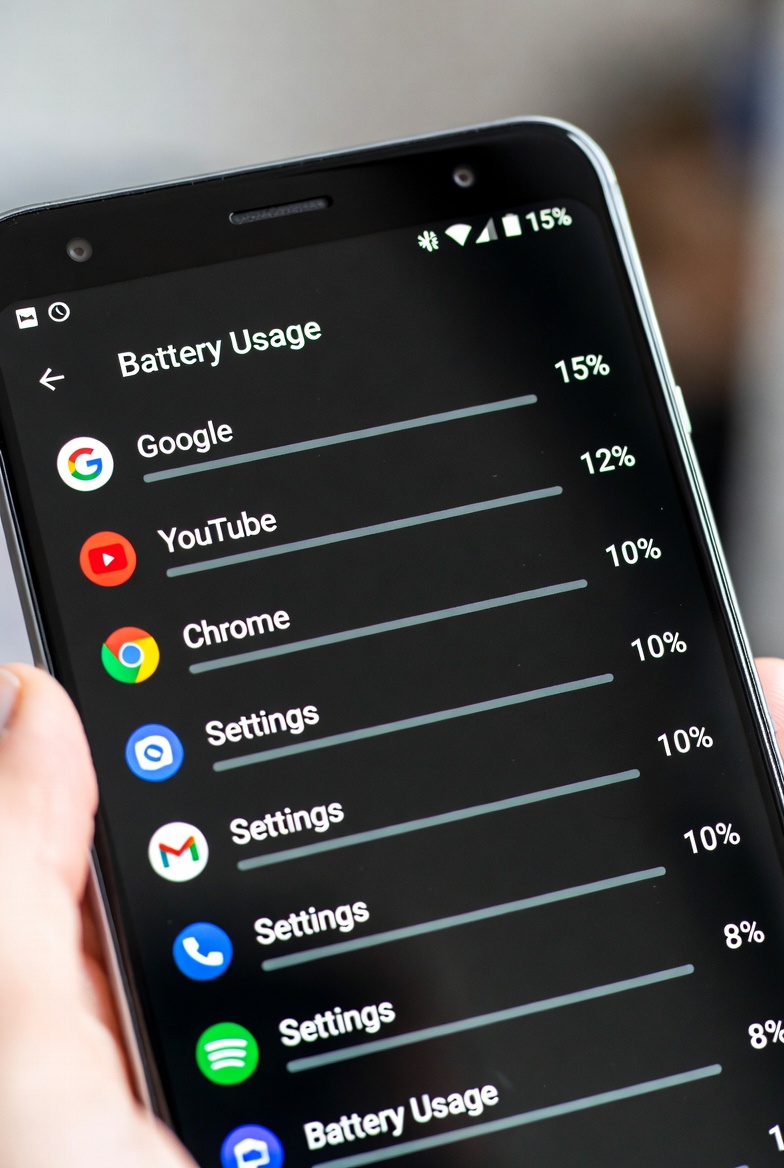
Go to Settings → Battery → Battery Usage (the exact path varies slightly by brand). Look at which apps have consumed the most battery in the last 24 hours. Is it Chrome? TikTok? Google Play Services? That list is your actual problem, not Bluetooth.
On most phones, you’ll also find a “Battery Usage Details” view that shows screen-on time vs background time per app. If an app is burning battery in the background when you haven’t even opened it — that’s a red flag.
The Screen Is Still Your Biggest Enemy — But Not for the Reason You Think
Yes, lowering brightness helps. But the screen issue that actually destroys battery life is refresh rate, and almost nobody talks about this properly.
If your phone has a 120Hz display — which most mid-range and flagship phones do now, including the Tecno Camon 30 Pro and the Infinix Note 60 Pro — running at 120Hz constantly is a significant drain. Hardware testing published by DisplayMate and various teardown engineers consistently puts the real-world battery cost of sustained 120Hz use at roughly 15–22% higher power draw compared to 60Hz under similar conditions. That’s not a rounding error — that’s potentially an extra hour or two of screen-on time per day.
The fix here isn’t to lock it at 60Hz permanently (you’ll miss the smoothness and it’s not necessary). Most phones now have an Adaptive Refresh Rate option that scales between 60Hz and 120Hz depending on what’s on screen. Enable that. Watching a static page doesn’t need 120Hz. Scrolling through a feed does. Let the phone decide.
This is the same principle behind why making Android feel faster often goes hand in hand with better battery life — when the system isn’t working harder than it needs to, everything improves.
The other display setting worth changing is Always-On Display (AOD). It’s beautiful. It’s also a quiet battery killer. If your screen is technically “on” — even at low brightness — all day, that adds up fast. Either turn it off or set a schedule so it only activates during certain hours.
And yes — auto-brightness is smarter than manually setting it low. Auto-brightness adapts to your environment, so you’re not blasting full brightness indoors just because you forgot to adjust it.
Background App Refresh Is Silently Wrecking You
This is the one that surprised me the most when I first dug into it. Apps that you haven’t opened in hours are still running in the background, syncing data, checking for notifications, updating feeds — and eating your battery while doing it.
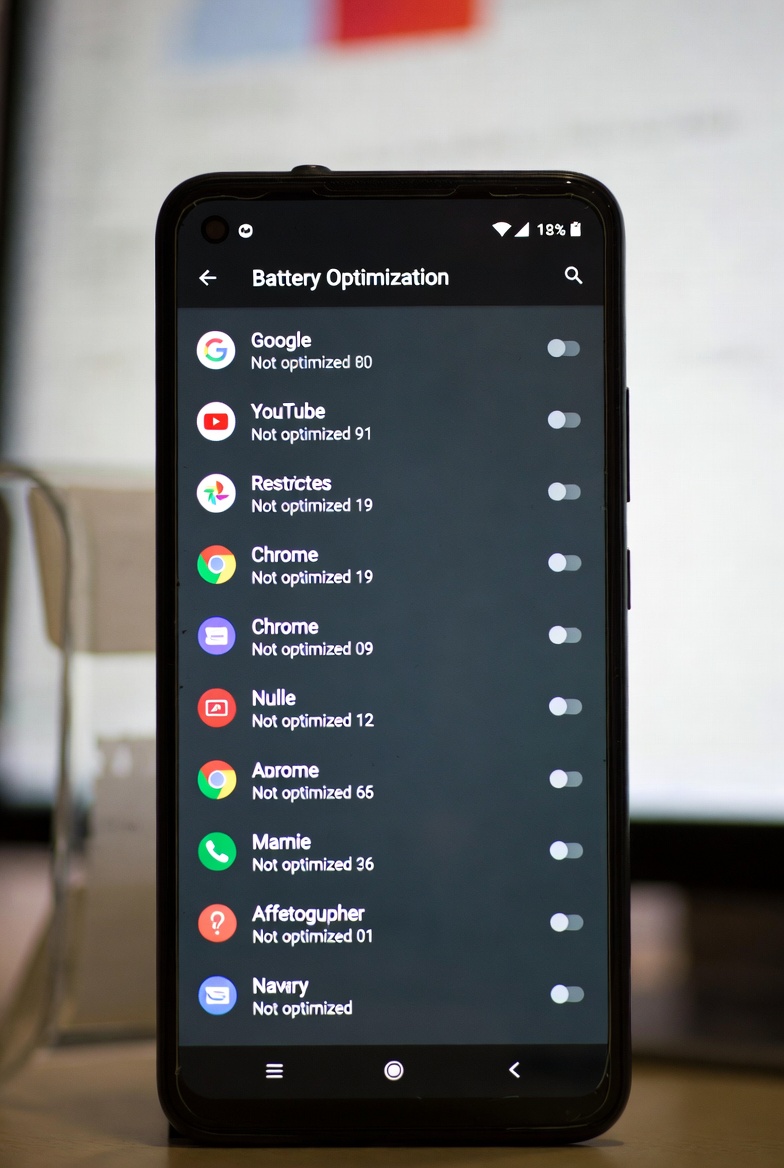
Android’s battery optimization feature is supposed to handle this, but the default settings are too lenient on most skins (MIUI, HiOS, XOS — looking at all of you).
Here’s what to actually do:
Step 1 — Restrict background activity for non-essential apps. Go into each app’s battery settings individually. You want to set apps like Twitter/X, Facebook, Reddit, and any shopping apps to “Restricted” or “Optimized” depending on your Android version. “Restricted” prevents background activity entirely. “Optimized” lets Android decide. For social media apps that you open manually anyway, Restricted is fine.
Step 2 — Disable app auto-sync for accounts you don’t need real-time updates from. Go to Settings → Accounts and look at which accounts are syncing. If you have 3 Google accounts and only actively use one, turn off background sync for the others.
Step 3 — Check your “wakelock” culprits. Apps that hold wakelocks prevent your phone’s processor from going into a deep sleep state. On stock Android and most custom ROMs, you won’t see this natively. But apps like AccuBattery (free, no root required) show you which apps are keeping your phone awake. I’ve caught apps like certain news clients and poorly coded games doing this — and removing them gave me noticeably better standby time overnight. If your phone is also feeling sluggish alongside the battery drain, that’s usually the same culprit — I covered how to trace and fix that in the Android performance guide.
The Settings Nobody Tells You About
These are the ones I actually found made a difference — not the ones every list repeats.
Location Services: Be Surgical, Not Blanket
Most guides say “turn off location.” That’s unhelpful. Your maps app needs location. Your weather widget needs location. What you don’t need is for every app to have “Always On” location access.
Go to Settings → Location → App Permissions and audit every single app. Set apps that don’t have a legitimate real-time reason to “Only while using” or “Deny.” The apps that hurt most are ones like Facebook and Instagram that default to “Always” — they’re pinging GPS in the background for ad targeting, not for you.
Sync Frequency on Email and Messaging
If you use Gmail or any email client with push notifications, check how often it fetches mail. “Push” means the server alerts your phone instantly, which is fine but requires a persistent connection. “Fetch every 15 minutes” is actually easier on the battery for most people and you’ll still see emails within a quarter hour. For work email specifically, if you’re not on call, set it to fetch every 30–60 minutes.
Wi-Fi vs Mobile Data
Wi-Fi uses significantly less power than mobile data — especially 5G. If you’re at home or in a location with stable Wi-Fi, stay on it. Some people leave mobile data on alongside Wi-Fi “just in case” — that’s unnecessary. Your phone can switch automatically when Wi-Fi drops. You don’t need both active simultaneously.
Dark Mode — Does It Actually Help?
Yes, but only on AMOLED/OLED displays. If your phone has an OLED screen (most flagship and upper-mid-range phones do now), dark mode with black backgrounds literally turns off those pixels, which saves power. On LCD screens, it makes zero difference to battery life. If your phone has OLED, dark mode is genuinely worth enabling — especially for heavy app users.
A Practical Battery Comparison: Common Habits vs. Optimized Habits
| Habit | Typical Impact | Optimized Alternative |
|---|---|---|
| 120Hz always on | High drain (15–25% extra) | Adaptive refresh rate |
| Social media background sync | Medium-high drain | Restrict background activity |
| Always-On Display all day | Medium drain | Schedule or disable AOD |
| Location always-on for 10+ apps | High drain | Audit to “only while using” |
| Push email from 3+ accounts | Medium drain | Fetch every 30–60 min |
| Screen-on brightness at max | Very high drain | Auto-brightness + adaptive |
| 5G always on in low-signal areas | Very high drain | Use LTE in weak signal zones |
| Overnight charge to 100% always | Long-term battery damage | Charge to 80–85% when possible |
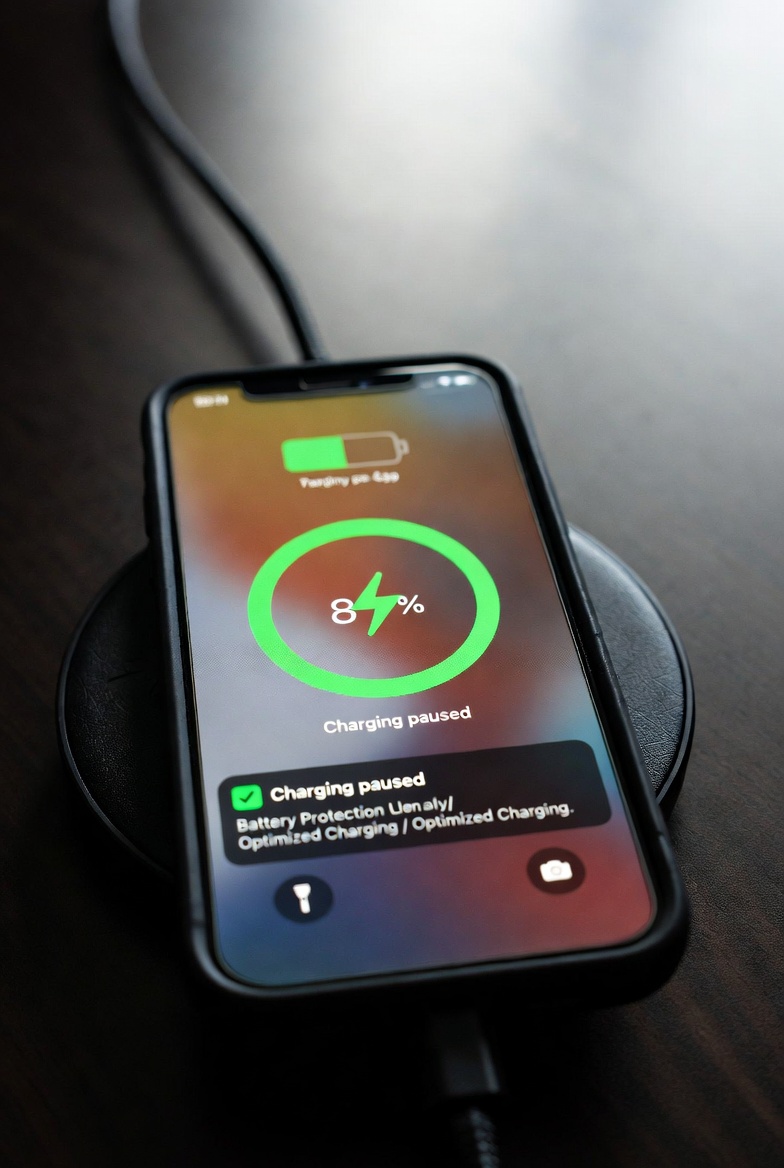
That last row is important and often ignored. Charging to 100% every single night and keeping it there actually degrades your battery faster over time. Lithium-ion batteries prefer being kept between 20% and 85%. Most phones now have a “Battery Protection” or “Optimized Charging” mode that stops charging at 80%. Enable it. Your battery’s long-term health will thank you.
Battery Saver Mode Is Overrated — Unless You Use It Right
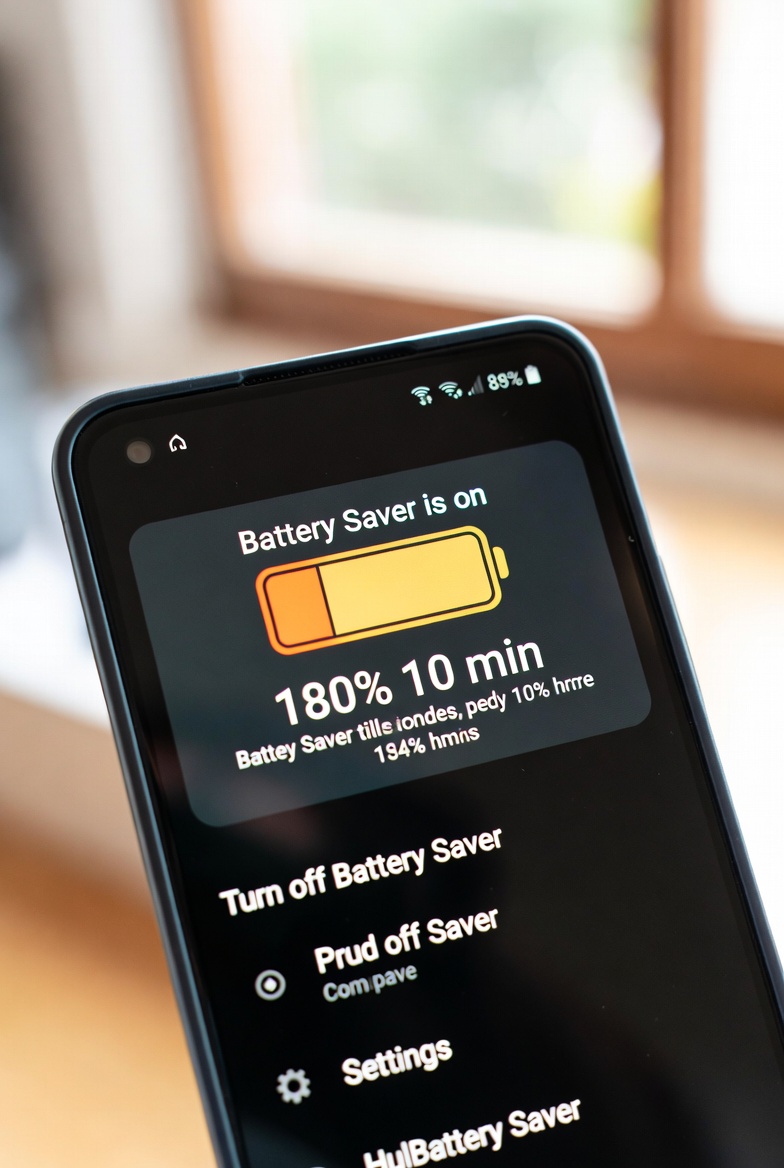
Here’s the honest take: battery saver mode, as most people use it, is almost useless. They turn it on at 8% when their phone is basically already dead. At that point you’re getting maybe 20 extra minutes. Congratulations, I guess.
The people who actually benefit from battery saver are the ones who turn it on at 50%. That sounds counterintuitive — why restrict your phone when you still have half a battery? Because you’re preserving a large charge at a reduced consumption rate, rather than desperately rationing the last drops at the end of the day. It’s the difference between rationing food before a long journey vs. starving and then rationing.
If you know you’re heading into a 6-hour stretch without a charger — a long commute, a full day of lectures, a travel day — turn on battery saver before you leave the house. Not when the warning pops up at 20%.
Most battery saver modes limit background activity, reduce performance slightly, and cap sync frequency. The performance cap is usually unnoticeable for regular use — browsing, messaging, music. You’ll only feel it if you’re gaming or doing something CPU-intensive. For the Redmi Note 14 and similar devices, this mode is especially effective because HyperOS’s battery management has some quirks with background processes that battery saver actively corrects.
The Charging Habits That Are Slowly Killing Your Battery
This section is less about getting through today and more about making sure your battery is still healthy in year two and three.
Avoid wireless charging as your primary charger. Wireless charging generates more heat than wired charging, and heat is the number one enemy of lithium-ion battery longevity. Use wireless charging occasionally — at your desk, for top-ups — but don’t rely on it every night.
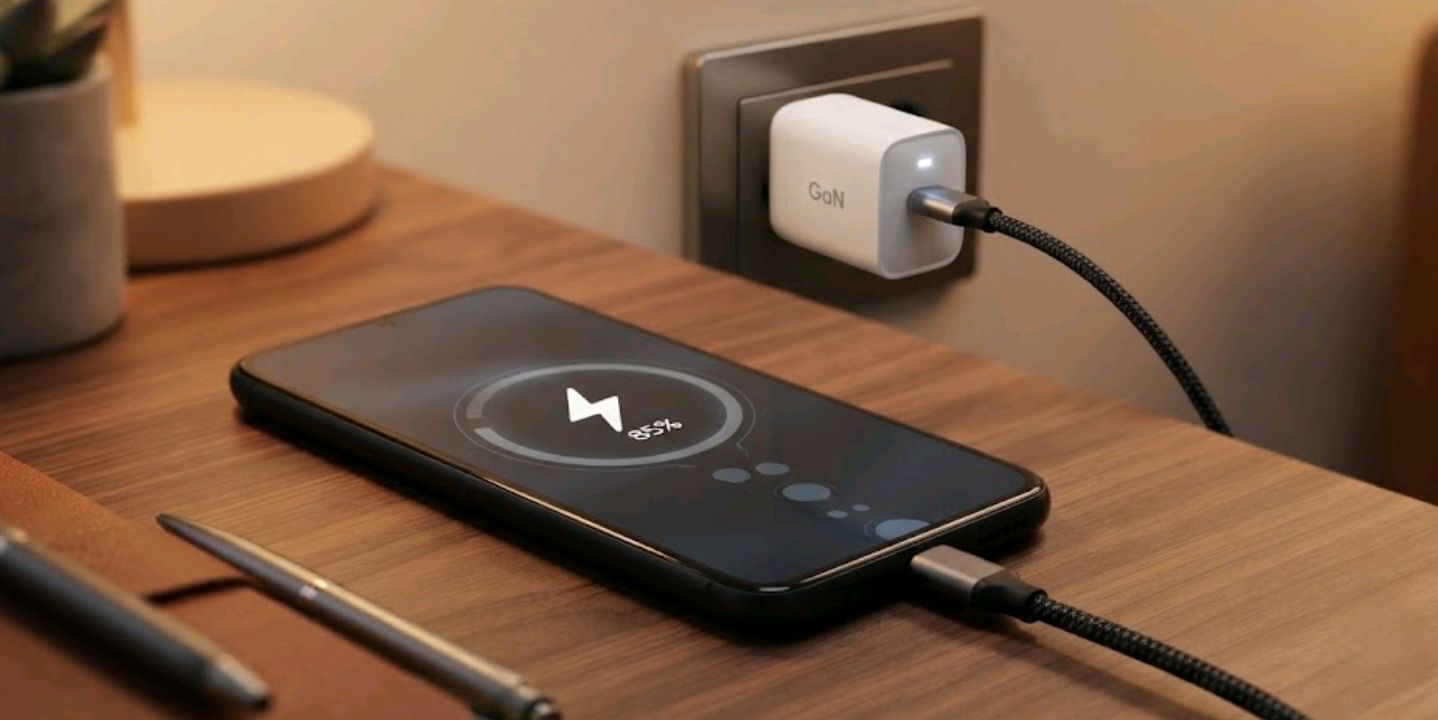
Don’t charge with a cheap or incompatible cable. A bad cable delivers inconsistent current, which stresses the battery controller. If your phone supports fast charging (most do now), use the cable and adapter that came in the box, or one certified for your phone’s charging protocol.
Charging overnight is fine if your phone has smart charging. Most 2024–2026 phones do. Smart charging learns your wake time and delays the final charge-to-full until shortly before your alarm. This minimizes time spent at 100%. Check if your phone has this feature — it’s usually called “Adaptive Charging” or “Battery Protection Mode.”
Phone-Specific Notes
Different brands handle battery differently at the software level. Here are a few things I’ve noticed across phones I’ve spent time with — and if you want the full deep-dive on any of these devices, I’ve linked them:
| Brand/Phone | Battery Quirk | Suggested Fix |
|---|---|---|
| Tecno Camon 30 Pro | HiOS background killer is aggressive but sometimes misses key offenders | Manually restrict social apps via Battery settings |
| Redmi Note 14 series | MIUI/HyperOS battery stats can be inaccurate; trust AccuBattery | Enable “Extended battery life” under Battery settings |
| Infinix Note 60 Pro | XOS tends to leave too many apps unrestricted by default | Do a full audit of background-allowed apps after setup |
| iPhone 17 Pro Max | iOS is already highly optimized; gains come from reducing screen-on time | Use Focus modes to kill notifications in bulk |
| Most 5G budget phones | 5G radio drains significantly in weak signal areas | Switch to LTE in buildings or rural areas |
FAQ
Does closing all apps in the recent menu actually save battery?
Not really — and on modern Android, it can actually make things worse. When you close an app and reopen it, the system has to reload it from scratch, which uses more CPU (and therefore battery) than resuming a cached app. Android already manages background memory well. Let it do its job. The only time you should force-close is when an app is behaving badly (overheating, unusual drain).
How much does dark mode actually help?
On AMOLED/OLED screens, real-world savings range from 5–15% depending on screen brightness and how heavily you use text/UI-heavy apps. At full brightness, the savings are smaller. At 50% brightness and below, dark mode makes a meaningful difference. On LCD screens — zero difference.
Is it safe to leave my phone charging all night?
On modern phones with smart charging, yes. On older phones without that feature, the risk is prolonged time at 100%, which stresses the battery. If your phone is more than two years old and doesn’t have smart charging, consider using a smart plug with a timer to cut power after 90 minutes.
Why does my battery drain faster in some locations?
Weak signal. When your phone has poor cellular signal, it constantly boosts its radio transmission power trying to maintain a connection. This is one of the fastest ways to drain a battery. In areas with poor signal, either switch to airplane mode (if you don’t need calls) or manually select a lower network band like LTE/4G.
Does battery replacement actually help on older phones?
Yes — if your phone is 2–3 years old and you notice significantly shorter screen-on time compared to when it was new, a genuine battery replacement can restore near-original performance. Most phone batteries are rated for around 500 full charge cycles before notable degradation begins. After that, capacity drops and your “100%” isn’t really 100% anymore.
Are battery optimization apps from the Play Store actually useful?
Most of them are not — and some are actively harmful. Third-party “battery saver” apps that claim to kill background processes often create more work for your phone by constantly restarting killed services. Android’s built-in battery management is better. The one exception is AccuBattery, which is genuinely useful for diagnostics and monitoring — not because it “saves” battery, but because it tells you what’s actually happening.
Battery life is one of those things where doing five small things right is more effective than doing one big thing. You’re not looking for a magic toggle — you’re building a set of habits and settings that collectively mean your phone finishes the day with enough charge to matter.
The goal isn’t obsessively monitoring your battery percentage all day. The goal is setting things up right once, and then forgetting about it. That’s when you know you’ve actually fixed it.
If you’re running a budget Android and wondering how software tweaks compare to hardware choices, I wrote about how to make Android feel fast again — some of those tips overlap here because performance and battery efficiency are closely linked. And if you’re specifically on Tecno, the hidden features post for the Camon 30 Pro covers some device-specific battery settings that go beyond what I covered here.
Make your battery work for you, not against you.


Comments 0
Leave a comment