Table Of Contents
Open Table Of Contents
- Overview
- 1. Why Your RAM Is Always Nearly Full (Android Memory Explained)
- 2. Why Your Android Phone Gets Warm When You’re Doing Nothing
- 3. Ghost Touch on Android — Why the Screen Moves Without You
- 4. Apps Still Draining Battery After You Close Them — Here’s Why
- 5. Why Android Wi-Fi Keeps Disconnecting Overnight (And How to Stop It)
- 6. Android Storage Says Full But You Can’t Find What’s Using It
- Comparison: What’s Normal vs What’s a Real Problem
- 7. Android Phone Restarted By Itself — Is That Normal?
- 8. Android Notifications Coming Late? This Is Why
- Quick Reference: Fixes at a Glance
- FAQ
- Final Word
Overview
If you’ve been searching why your Android phone behaves strangely — random restarts, RAM that never empties, phantom screen touches — you’re not alone. And in most cases, your phone isn’t broken.
There’s a specific kind of panic that hits when your phone does something you’ve never seen before.
Maybe it restarted in your pocket. Maybe the screen flickered for a split second while you were scrolling. Maybe you noticed your RAM is always “almost full” no matter how many apps you close — and now you’re convinced your phone is dying, infected, or just badly made.
I’ve been there. Multiple times. With multiple phones.
And after years of using mid-range Androids — Tecno, Infinix, Xiaomi — and writing about them on ReviByte, I’ve learned that most of these “scary” behaviours are actually Android doing exactly what it was designed to do. You just weren’t told. Nobody was.
So let’s fix that.
1. Why Your RAM Is Always Nearly Full (Android Memory Explained)
Android intentionally fills your RAM. It’s not a problem — it’s the design.
It’s called preloading. Android keeps recently used apps in memory so they reopen instantly the next time you tap them. An empty RAM is a wasted RAM, and the OS is built to use as much of it as possible while keeping enough headroom for whatever app you’re actively in.
So when you clear your apps, check your RAM, and still see 4.5GB used out of 6GB — that’s correct. That’s Android working as intended. You closed the apps; Android quietly reloaded what it needed in the background, and that’s exactly what it’s supposed to do.
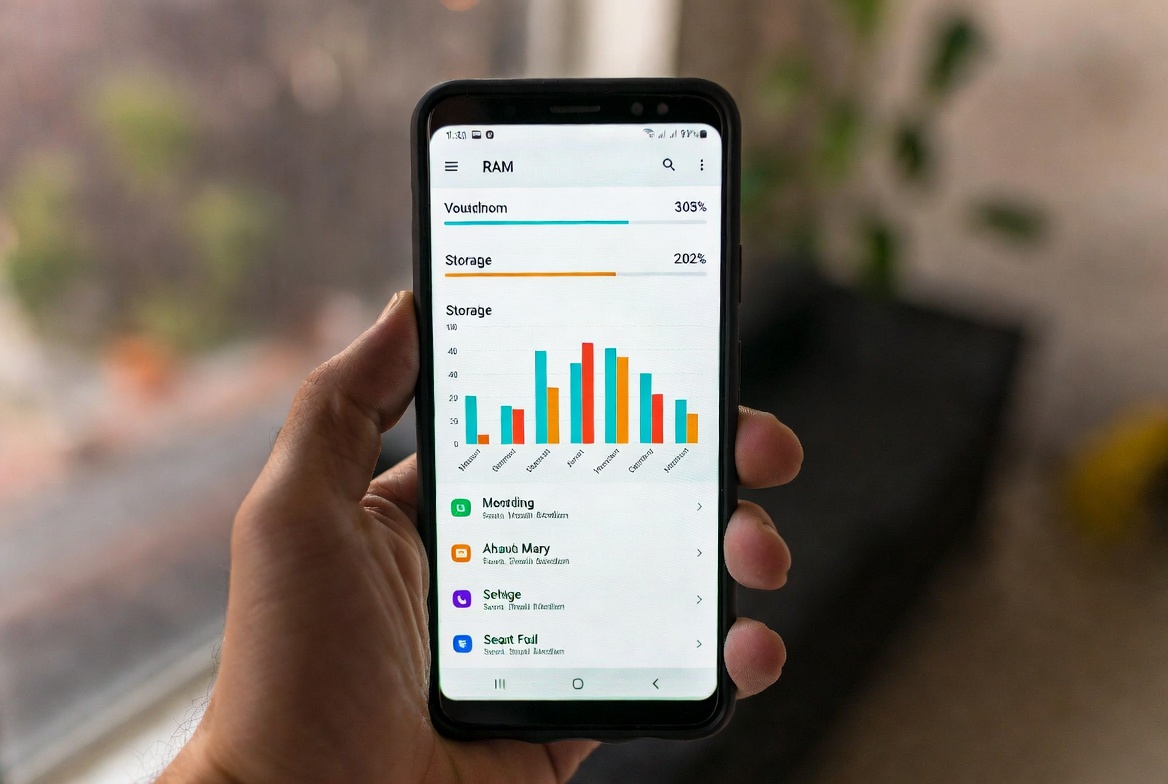
The real sign of a RAM problem isn’t high usage — it’s when apps take too long to reload after switching. That means your phone isn’t managing memory well, not that you need to manually clear it more often. If anything, third-party “RAM cleaners” make things worse. They kill apps Android wants to keep warm, then Android reloads them anyway.
If you’re on a device like the Redmi Note 14 or anything below 6GB RAM, the experience might feel tighter — but the same rule applies. I wrote more about this in why 8GB RAM phones still lag in 2026, and the short answer is: RAM alone isn’t the whole story.
What to actually do: Stop obsessing over RAM numbers. If apps are reloading slowly, look at your background app settings, not your memory cleaners.
2. Why Your Android Phone Gets Warm When You’re Doing Nothing
You’re lying down, phone is just sitting there. You pick it up and the back feels warm. No gaming, no streaming, no charging. Just… warm.
This one used to annoy me a lot. My Tecno Camon at the time would sometimes feel warm after a night of sitting idle. First instinct? Something is running in the background eating processing power.
And usually — you’re right. Just not in the way you think.
The culprit is almost always a background sync. Google Photos backing up, an app refreshing its feed, a system update downloading silently. Android gives apps permission to do things in the background, and sometimes multiple things happen at once without any visible indicator.
“Your phone warming up during idle is often Android working in the background — not a hardware failure. The difference is how long it lasts.”
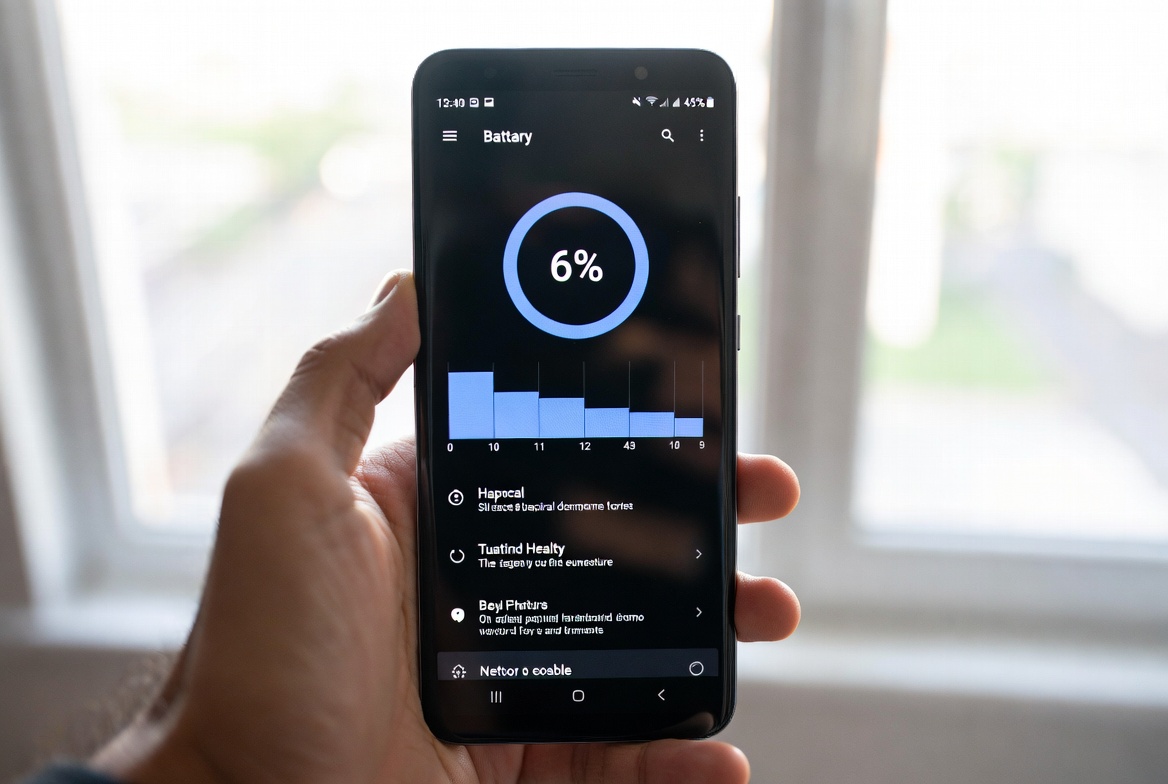
If it’s a brief warmth that goes away in 10–15 minutes, that’s normal. If the phone stays consistently warm for hours without heavy use, you have a background runaway — something that won’t stop. Check your battery usage screen and look for apps with surprisingly high drain while the screen was off.
I covered this properly in the phone overheating while charging post — some of those patterns apply here too.
What to actually do: Go to Settings → Battery → Battery Usage and filter by “Since last full charge.” If a random app is in the top 3 with screen-off drain, restrict its background activity or uninstall it.
3. Ghost Touch on Android — Why the Screen Moves Without You
You put your phone down on a surface and suddenly it’s doing things. Opening apps. Scrolling. Mistyping. You look at it and the screen is visibly registering touches you’re not making.

This is called ghost touch, and it has a few common causes:
- Cheap screen protectors that mess with the touch calibration
- Extreme temperatures — both hot and cold affect capacitive screens
- Moisture or humidity on the screen surface
- Hardware damage to the digitizer layer
Most of the time, if it’s occasional and goes away, it’s environmental. Wipe the screen, remove the protector temporarily, and test. If ghost touches happen constantly regardless of conditions, that’s a hardware issue — the digitizer is likely damaged.
On budget phones especially, the touch panels are thinner and more sensitive to interference. It’s not a sign your phone is defective out of the box — it’s a cost trade-off that shows up in real-world use.
What to actually do: Start by cleaning the screen and removing your protector. Test with bare glass. If it continues, check if it worsens in heat — if yes, it’s likely a damaged digitizer from thermal stress. That’s a screen replacement situation.
4. Apps Still Draining Battery After You Close Them — Here’s Why
You definitely closed that app. You swiped it away from the recents menu. Yet when you check battery stats, it’s listed as using battery.
This confuses a lot of people because it seems like a contradiction. If I closed the app, how is it using power?
Android doesn’t treat “swiping away from recents” as a full app close in all cases. Some apps are built to restart services automatically when killed — chat apps, email clients, anything that needs to receive notifications. Others have wake locks that keep parts of the app alive even after you clear them.
This is especially true for Chinese OEM apps on Tecno and Infinix phones. Their bloatware often has persistent services that re-launch themselves. It’s annoying, and the solution isn’t swiping harder.
You either force stop the app from settings, or better — you go to Battery → App Launch (on MIUI/HyperOS) or the equivalent battery optimization menu on your skin and manually restrict which apps can auto-launch in the background.
What to actually do: Use your battery optimization settings — not the recents screen — to actually restrict background app behavior. Force Stop from Settings → Apps is a temporary but effective one-time kill.
5. Why Android Wi-Fi Keeps Disconnecting Overnight (And How to Stop It)
You go to bed on Wi-Fi. Wake up on mobile data. You didn’t change anything.
Android has a built-in setting called Wi-Fi sleep policy that, when set to “Disconnect when screen is off,” will turn off Wi-Fi once the display goes to sleep. On some skins, this is enabled by default to save battery.
The logic is reasonable — if you’re not actively using your phone, why keep Wi-Fi on? But the problem is that apps configured to sync or receive data over Wi-Fi will silently switch to mobile data, burning your data allowance overnight.
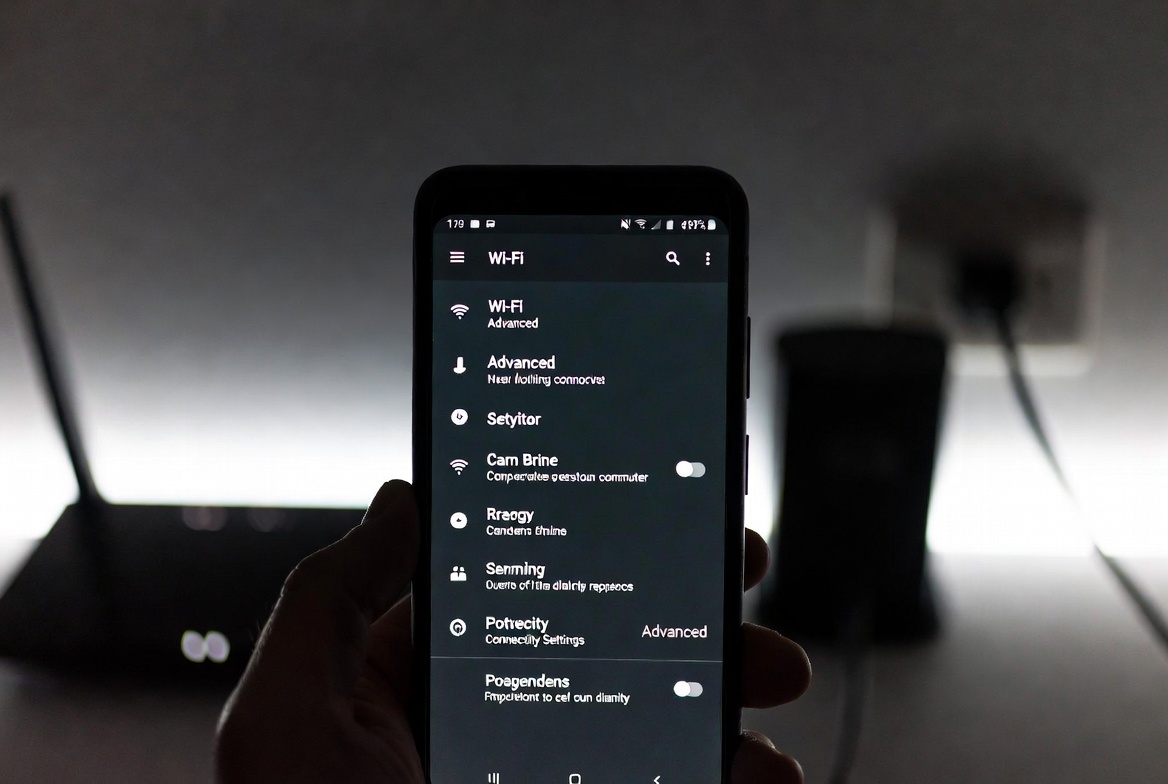
On stock Android, this is under Settings → Wi-Fi → Advanced → Keep Wi-Fi on during sleep. On MIUI/HyperOS or OEM skins, it might be buried differently. Some budget phones also have aggressive battery optimization that kills the Wi-Fi chip to save power, even if you didn’t ask it to.
What to actually do: Find the Wi-Fi sleep policy and set it to “Always.” Also check if your battery optimization isn’t set to aggressive mode system-wide — that can override individual app settings.
6. Android Storage Says Full But You Can’t Find What’s Using It
You check your files. Nothing obvious. Photos aren’t that many. Apps seem fine. But storage says 90% used.
The culprit is almost always one of three things:
- App cache — accumulated over time, never cleared
- WhatsApp media — videos people send you pile up silently in the background
- System data / residual files from apps you’ve uninstalled
WhatsApp is the biggest offender I’ve seen across Nigerian users especially. Videos in status, in group chats, in DMs — all get saved automatically. Some people have 3–4GB of WhatsApp media they’ve never once intentionally saved.
Go to Settings → Storage → [tap the category bars] to see exactly what’s taking space. Then hit WhatsApp specifically: Settings → Storage and Data → Manage Storage. Sort by size. You’ll be shocked.
Comparison: What’s Normal vs What’s a Real Problem
| Behavior | Normal? | What It Actually Means |
|---|---|---|
| RAM always nearly full | ✅ Yes | Android preloading apps — that’s how it’s designed |
| Phone warm during sync/update | ✅ Yes | Background tasks; goes away on its own |
| Phone warm for hours with no activity | ❌ No | Background runaway app, possible hardware issue |
| Apps in battery stats after being closed | ✅ Sometimes | Services relaunching — restrict in settings |
| Ghost touch once or twice a week | ⚠️ Maybe | Environmental; monitor it |
| Ghost touch constantly | ❌ No | Digitizer damage — needs hardware repair |
| Wi-Fi off after sleep | ✅ Yes (by design) | Change sleep policy in Wi-Fi settings |
| Storage full but nothing visible | ✅ Common | App cache + WhatsApp media — clear manually |
| Random restart once in 2 months | ✅ Normal | System process crash; Android self-recovers |
| Frequent random restarts | ❌ No | Overheating, failing hardware, or corrupt OS |
7. Android Phone Restarted By Itself — Is That Normal?
Short answer: one or two times in a month or two? No.
Android is a complex OS running dozens of processes simultaneously. Occasionally, something crashes hard enough that the OS can’t recover gracefully and restarts itself. This is actually a safety mechanism — better a quick reboot than a permanently frozen device.
What you should watch out for is pattern. If your phone is restarting multiple times a week with no obvious trigger, that’s a different story. Frequent random restarts can indicate:
- The phone is overheating and triggering thermal shutdown
- A failing battery that drops voltage suddenly under load
- A corrupted system app or bad update
- Actual hardware failure
The how to check battery health on Android without root guide I wrote covers how to figure out if your battery is the reason — because a swollen or aging battery is one of the most common causes of unexpected restarts people never diagnose.
8. Android Notifications Coming Late? This Is Why
You see a WhatsApp message and realize it was sent two hours ago. You never got the notification. This happens more than it should, especially on Tecno, Infinix, and even MIUI devices.
It comes down to Doze mode and aggressive battery optimization. Android Doze restricts background activity and network access when the phone is idle to save battery. That’s the feature working as intended.
The issue is when OEM battery optimization layers on top of Doze kill background processes so aggressively that notification delivery gets delayed for apps that aren’t explicitly whitelisted.
What to actually do: Go to Settings → Battery → App Launch / Battery Optimization and find the apps whose notifications you care about — WhatsApp, Gmail, your banking app. Set them to “Manage Manually” and enable background activity, auto-launch, and secondary launch. It slightly increases battery drain, but at least your notifications arrive on time.
If you want to actually make your phone feel more alive overall — faster, less sluggish, more responsive — I wrote a full guide on how to make Android feel fast again that covers this and more.
Quick Reference: Fixes at a Glance
| Problem | Go Here | Do This |
|---|---|---|
| RAM always full | Nowhere — it’s fine | Stop clearing RAM manually |
| Phone warm (idle) | Settings → Battery → Battery Usage | Find high screen-off drain app |
| Ghost touch | Settings → Display | Remove screen protector, test |
| Apps draining battery after close | Settings → Battery → App Launch | Restrict auto-launch |
| Wi-Fi off after sleep | Settings → Wi-Fi → Advanced | Set sleep policy to “Always” |
| Storage full (hidden) | Settings → Storage | Clear app cache, manage WhatsApp media |
| Late notifications | Settings → Battery → App Optimization | Whitelist critical apps |
| Random restarts | Check battery health | Use USSD or AccuBattery to check |
FAQ
Q: Why is my Android phone slow all of a sudden?
If it just started happening, the most likely causes are a recent app update that introduced a background service, a system update that’s still optimising in the background (give it 24–48 hours), or accumulated junk — cache, old media, fragmented storage. Start with Settings → Storage, then check Battery Usage for anything with high screen-off drain. If it’s still slow after clearing both, consider whether a specific app is the trigger.
Q: Should I clear RAM on Android?
No — and I mean that firmly. Clearing RAM on Android makes your phone slower, not faster. The OS uses that memory to keep apps ready so they reopen instantly. When you manually clear it, Android has to rebuild everything from scratch the next time. The only scenario where manual clearing helps is if one specific app is misbehaving and eating too much memory — in that case, Force Stop that single app from Settings, not a RAM cleaner.
Q: Why does my Android phone keep restarting randomly?
One or two restarts in a month or two is normal — Android sometimes crashes a process and recovers by rebooting. But if it’s happening weekly or daily, check three things: battery health (a swollen or aging battery can drop voltage suddenly under load), whether it restarts under heat (thermal shutdown), or whether a recent app or system update is the culprit. The battery health guide will help you rule out the battery.
Q: Is it bad to always keep my phone plugged in overnight?
Most modern Androids have charge management that slows down near 100% to protect the cell. But consistently charging to full does degrade capacity faster over time. If your OEM offers a charge limit setting — MIUI, HyperOS, and some Tecno skins do — set it to 80–85%. It’s a small habit that extends battery life by months. The how to make your battery last all day guide goes deeper on this.
Q: My phone says it has 8GB RAM but still lags. Is it fake?
Not fake — but RAM spec alone is only one part of the equation. Storage speed (eMMC vs UFS), the CPU’s efficiency cores, thermal throttling, and how well the OEM skin manages background tasks all shape your real-world experience more than the RAM number. I went into this properly in why 8GB RAM phones still lag in 2026.
Q: Why does my Android feel slower after an update?
Two things happen right after an update: the system re-compiles all your apps in the background (this can take hours), and the update itself may have introduced heavier processes. Both are temporary. If the slowdown persists past 48 hours, check if the update has known issues for your model — look for your phone + update version on Reddit or XDA. Sometimes a patch comes out quickly.
Q: Is a phone overheating during gaming a hardware defect?
No. Heat is a normal byproduct of the GPU and CPU working hard. What matters is what the phone does with that heat — throttling (slowing down to cool off) is a protective measure; shutting down from heat is a thermal management failure. Budget phones throttle more aggressively because they have thinner heat spreaders. The phone overheating guide covers the thermal principles in detail.
Q: My budget 5G phone lags more than my old 4G phone. Is that normal?
Unfortunately, yes — on some devices. Budget 5G modems draw significantly more power and generate more heat than 4G-only chips. On lower-end SoCs, this thermal load causes the whole chip to throttle, affecting everything else. If your area also has weak 5G coverage, the modem spends energy constantly searching for signal. The best 5G budget phones under 250k in Nigeria roundup specifically filters for phones that handle 5G efficiently at that price point.
Final Word
Most of what Android does that looks broken is actually intentional design — trade-offs made for battery life, performance, or compatibility. The OS doesn’t always explain itself, and that silence creates panic.
The best thing you can do is learn why something happens before you assume it’s broken. Nine times out of ten, it’s not. And for the one time it actually is — now you know where to look.
If you found this useful, the ReviByte 121-day milestone post has a roundup of the most useful content from the past few months — a good place to catch up on everything you might have missed.