Table of Contents
Open Table of Contents
- Overview
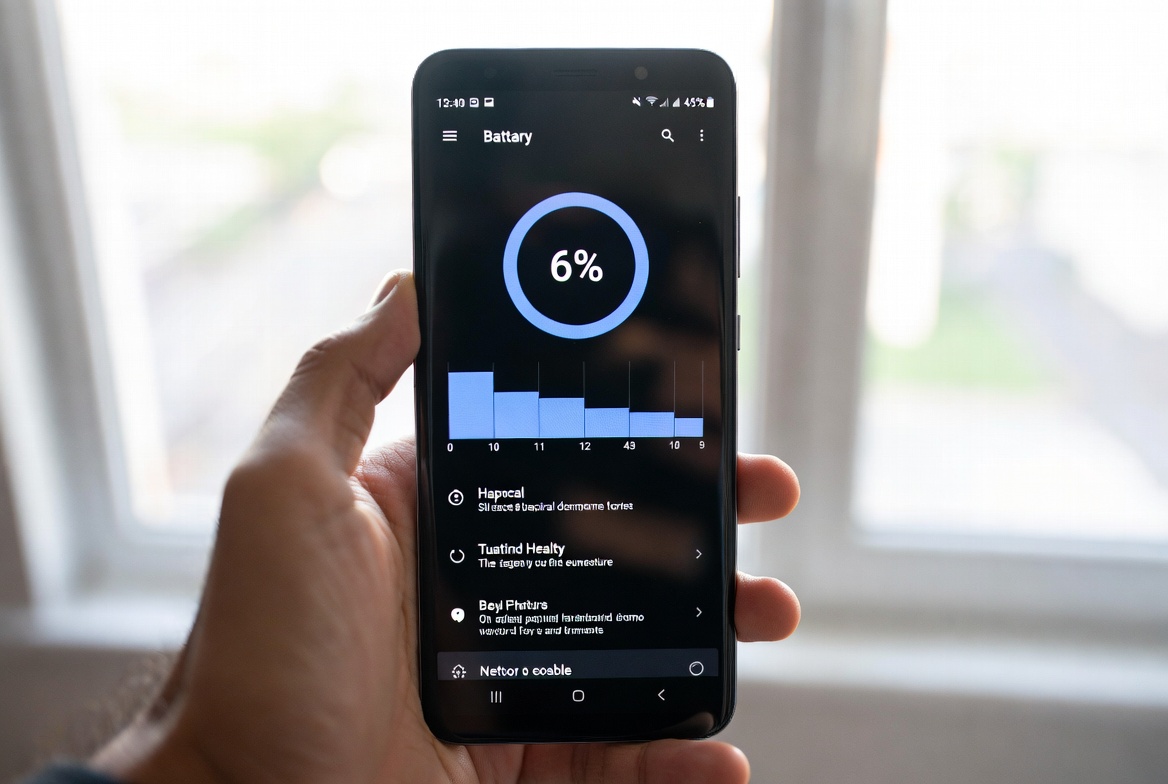
- Quick Answer: How to Check Battery Health on Android
- Why Battery Health Degrades (And Why It Matters)
- Method 1: Check Through Your Phone’s Built-In Settings
- Method 2: Use a Hidden Diagnostic Code (USSD)
- Method 3: AccuBattery (The Best Third-Party Option)
- Method 4: Read Raw Battery Data via ADB (Advanced, No Root)
- What to Do With Your Battery Health Number
- Comparison Table: Methods at a Glance
- Frequently Asked Questions
Overview
There’s this moment every Android user eventually hits. You charge your phone overnight, unplug it at 100%, and by 11 AM it’s already at 63%. You haven’t done anything wild — checked a few apps, replied to a WhatsApp message, maybe streamed one YouTube video. And the battery is just… gone.
The phone isn’t broken, necessarily. But the battery is tired.
The problem is that Android doesn’t make it easy to know this. Unlike iPhones, which have had a built-in Battery Health percentage since iOS 11.3, most Android phones bury this information or don’t surface it at all in plain language. That drives me crazy, honestly. You’re using a device every single day, and you can’t even get a straight answer on whether the thing powering it is still functional.
So this post is about fixing that. No root, no shady APKs you found on some forum in 2019, no complicated terminal commands. Just practical ways to check your Android battery health right now — and what to actually do with that information.
Quick Answer: How to Check Battery Health on Android
If you just need the short version before diving deeper:
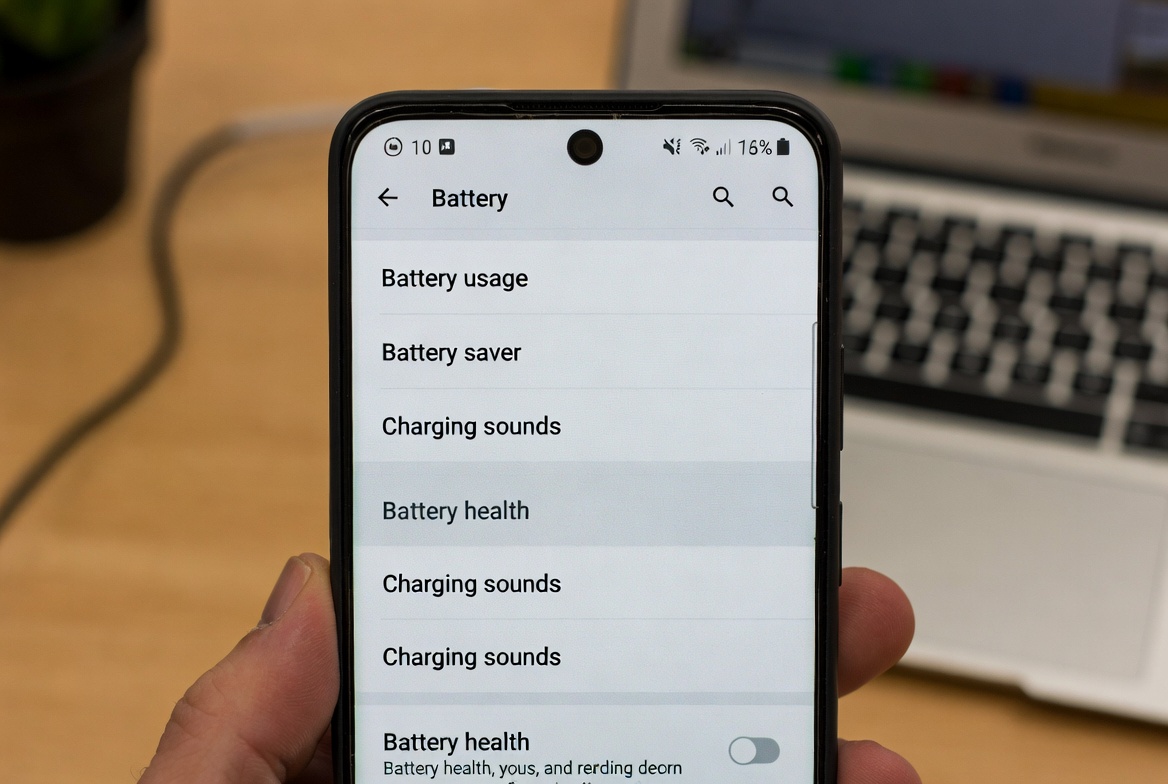
- Check built-in settings first — on Pixel (Android 14+) and Samsung (One UI 6+), go to Settings → Battery → Battery health
- Try a USSD code — dial
*#0228#on Samsung or*#*#6485#*#*on Xiaomi to access hidden diagnostic menus - Use AccuBattery — the most reliable option for any Android phone; install it and let it learn your battery over a few charge cycles
- Run an ADB command — for technical users,
adb shell cat /sys/class/power_supply/battery/charge_fullgives raw capacity data without root
None of these require root access. Keep reading for the full step-by-step on each method.
Why Battery Health Degrades (And Why It Matters)
Before we get into the how, let me give you a quick picture of why this happens at all — because it changes how you interpret the numbers later.
Lithium-ion batteries — which is what’s in your Android phone — don’t last forever. They have a finite number of charge cycles. One cycle is roughly one full charge from 0 to 100%. According to the Android Developers documentation on power management, lithium-ion batteries degrade with each charge cycle and their capacity diminishes over time — this is by design, not a defect. Most phone batteries are rated for somewhere between 300 and 500 full cycles before noticeable degradation kicks in. Premium batteries in flagships sometimes stretch to 800 cycles.
Every time you run a cycle, the battery’s maximum capacity drops slightly. It’s not dramatic at first. After 100 cycles, you probably can’t tell the difference. But after 300? You might go from a battery that held 4,500 mAh to one that’s effectively delivering 3,700 mAh — even if your phone still says “100%” when you unplug it.
That disconnect is what makes checking battery health worth doing. The percentage you see is relative to the current maximum capacity, not the original one. So 100% today isn’t the same 100% as when you bought the phone.
A note for readers in Nigeria specifically: battery degradation hits harder here than in most places, and it’s not just about charge cycles. Constant power cuts mean most people charge their phones multiple times a day — sometimes three or four short top-ups from a power bank, generator, or inverter. Short, frequent charges still count toward your cycle count, and unstable power from generators can spike voltage slightly during charging. Add Lagos heat to the equation — a phone sitting in direct sun or in a hot car charges slower and degrades faster. I’ve tested AccuBattery on a Tecno Camon device used by a friend in Lagos who never bought the original charger and replaced it with a ₦1,500 market alternative. After roughly eight months of use, AccuBattery was already reporting 79% health. That’s significant wear for less than a year. Cheap chargers and heat are a combination that quietly destroys your battery.
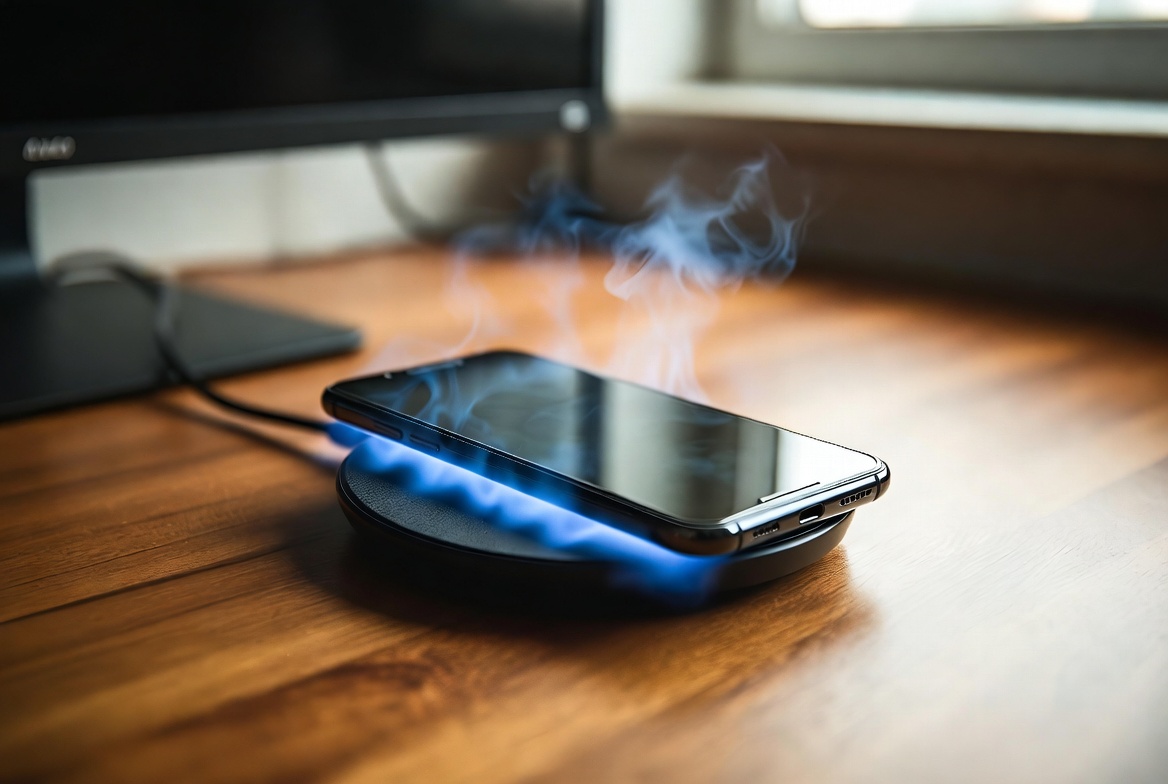
Heat accelerates this faster than anything else. If your phone regularly gets hot during charging — especially with cheap fast chargers — your battery is aging faster than it should. I wrote about phone overheating while charging and what it actually does to your hardware. Worth reading if your phone runs warm.
Method 1: Check Through Your Phone’s Built-In Settings
This is where you should start, because some manufacturers have actually added battery health info natively — you just need to know where to look.
Samsung (One UI 6+)
Go to Settings → Battery → Battery information. Samsung added a Battery Health field here for newer devices running One UI 6. You’ll see a percentage. The 80% threshold is widely referenced as the point where degradation becomes noticeable — Apple uses it as their official service benchmark, and most battery manufacturers use similar figures in their lithium-ion cycle testing. Below 80% and you’ll notice meaningful impact on daily usage.
Older Samsung devices don’t have this. If you’re on One UI 4 or earlier, skip to Method 2.
Xiaomi / Redmi / MIUI / HyperOS
This is the one that frustrates me most. Xiaomi has been incredibly inconsistent about this. Some HyperOS builds on newer Redmi phones include a battery health indicator under Settings → Battery → Battery health. Others just… don’t.
I’ve been testing the Redmi A7 Pro 5G and I reviewed it recently — finding battery health data on budget Redmi devices running stripped-back HyperOS builds is genuinely hit or miss. If it’s there, it’s there. If not, the hidden menu method below will get you further.
Motorola
Motorola’s My UX skin is pretty close to stock Android, and they don’t include a native battery health screen on most devices. You’ll need a third-party app or the USSD method.
Google Pixel
Pixel phones running Android 14+ have a battery health percentage under Settings → Battery → Battery health. Google finally added this natively and it’s clean — gives you a simple percentage with no extra steps.
OnePlus / OxygenOS
Settings → Battery → Battery health is available on newer OxygenOS 14 builds. If you’re on an older build, it may not be there.
Method 2: Use a Hidden Diagnostic Code (USSD)
This is one of those things that feels like a cheat code, and I kind of love it.
Most Android phones — especially from Samsung and some Xiaomi devices — respond to USSD codes dialed directly from your phone app. These open hidden service menus that expose hardware diagnostic data your manufacturer doesn’t put in plain settings.
For Samsung:
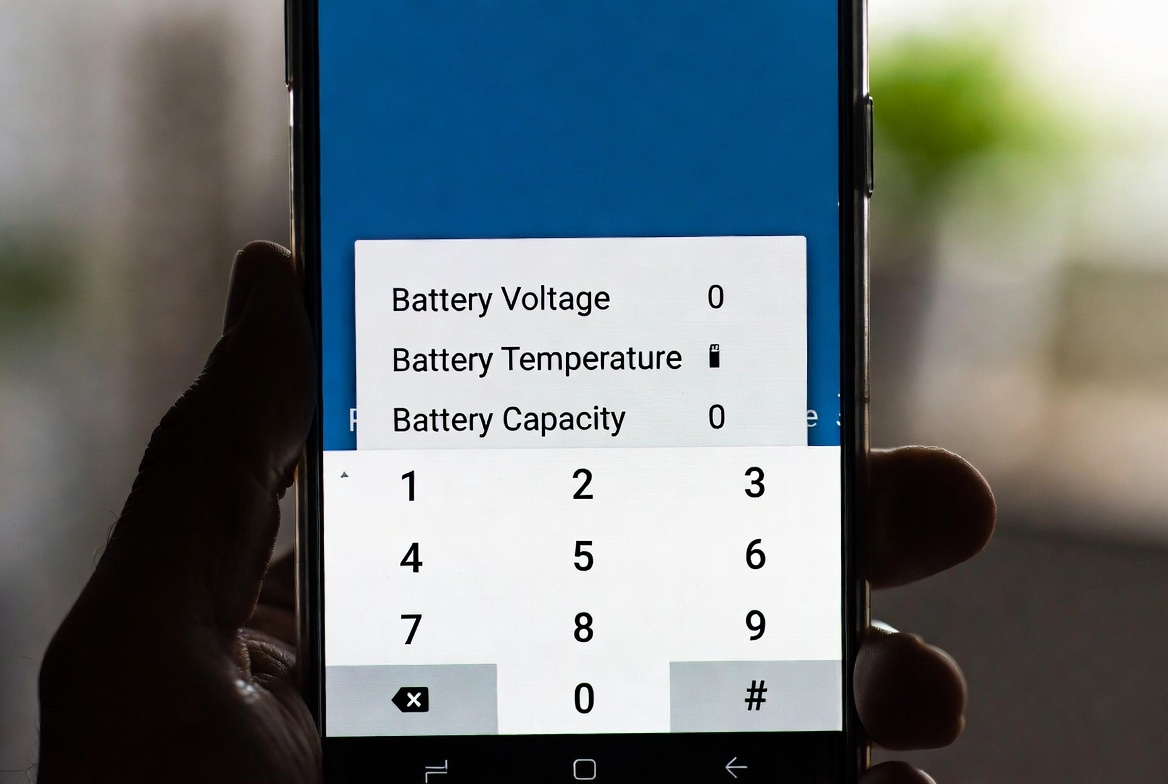
Open your phone dialer and type: *#0228#
This opens the Battery Status screen, which shows you real-time voltage, temperature, and sometimes capacity in mAh. It’s not a “health percentage” in the traditional sense, but you can compare the Charging Status capacity figure against your phone’s original rated capacity to estimate degradation.
Some Samsung devices also respond to *#*#4636#*#* which opens a more general phone testing menu — navigate to Battery information from there.
For Xiaomi / Redmi:
Try *#*#6485#*#* — this opens a hardware info panel on MIUI and some HyperOS builds that includes actual battery specs, voltage, and in some cases the design capacity vs. current capacity, which is exactly what you want.
Not every Xiaomi device responds to this. It depends on your region build. If nothing happens, move to Method 3.
Method 3: AccuBattery (The Best Third-Party Option)
If your built-in settings don’t give you what you need and the USSD code doesn’t work, AccuBattery is the app I’d point you to first. And I don’t say that lightly — most “battery health” apps in the Play Store are garbage. They show you fake percentages, run constant background processes, and the only thing they’re measuring accurately is how quickly they drain your battery themselves.
AccuBattery is different because it doesn’t just read a number from your system and display it with better graphics. It actually learns your battery over time.
Here’s how it works: Android exposes a value called charge_counter (or sometimes charge_full and charge_full_design) through the battery stats API. AccuBattery reads these values and builds a picture of your battery’s real maximum capacity by logging charge sessions over time. The more you use it, the more accurate it gets.
Setup takes about a minute:
- Download AccuBattery from the Play Store (the free version is enough for health checking)
- Open it and go through the brief setup
- Charge your phone — AccuBattery will analyze the session when you unplug
- After a few charge cycles, it’ll give you a health percentage and a “Designed Capacity vs. Measured Capacity” comparison
The key stat to look at: Health (%) under the Health tab. Anything above 80% and your battery is still performing reasonably. 70–80% is degraded but manageable. Below 70% and you’re going to feel it every single day.
Pro tip: Don’t charge to 100% every time if you can avoid it. AccuBattery lets you set a charge alarm at 80%. Keeping your charge range between 20% and 80% significantly slows degradation. I covered this in detail in my post on how to make your battery last all day.
Method 4: Read Raw Battery Data via ADB (Advanced, No Root)
Not technical? Skip this one. If the words “terminal” or “command line” make you nervous, AccuBattery in Method 3 will give you accurate results without any of this. This method is for people who want the raw system numbers and are comfortable with a little setup.
This one’s for people who want the raw numbers and aren’t afraid of plugging their phone into a computer. No root needed — just ADB (Android Debug Bridge), which is part of Android’s standard developer tools.

What you’ll need:
- A PC or Mac with ADB installed (download the Android Platform Tools from Google)
- A USB cable
- Developer Options enabled on your phone (Settings → About Phone → tap Build Number 7 times)
- USB Debugging turned on under Developer Options
The command:
adb shell dumpsys batteryThis gives you a readout that includes voltage, temperature, status, and most importantly: level and sometimes charge_counter.
For a deeper look at capacity:
adb shell cat /sys/class/power_supply/battery/charge_full
adb shell cat /sys/class/power_supply/battery/charge_full_design
charge_full is the current maximum capacity your battery can hold. charge_full_design is what it was rated for when it left the factory. Divide one by the other and multiply by 100 — that’s your health percentage.
Example: If charge_full returns 3600000 and charge_full_design returns 4500000, your battery health is 80%.
This is the most accurate method available without root. The only caveat is that not every Android device exposes these files — some manufacturers lock them down. If the command returns “Permission denied” or “No such file or directory,” your device is one of the locked ones.
What to Do With Your Battery Health Number
Now that you have a number, what does it actually mean for how you use your phone?
| Battery Health | What to Expect | Recommended Action |
|---|---|---|
| 95–100% | Effectively brand new | No action needed — just maintain good charging habits |
| 85–94% | Minimal degradation | You’ll notice slightly shorter usage; still very usable |
| 75–84% | Moderate wear | Screen-on time drops noticeably; consider habits adjustment |
| 65–74% | Significant degradation | Daily charging pattern has to change; battery may not last a full day |
| Below 65% | Severe wear | Replace the battery or start planning for a new phone |
One thing worth noting: these percentages aren’t the only thing that matters. A phone with 78% battery health running a light workload might still get you through a full day. The same phone with heavy gaming and 4K video will die by 2 PM. Battery health gives you the ceiling — your actual habits determine where you land within that range.
I’ve seen phones with 74% health handle moderate use fine for another year, and I’ve seen phones at 80% that felt unusable because the person ran demanding apps constantly. Context matters.
Battery wear isn’t the only reason phones slow down over time. RAM management, storage fragmentation, and background processes all contribute too. If your phone feels sluggish even with decent battery health, check my guide on why 8GB RAM phones still lag in 2026 — the answer might surprise you.
Comparison Table: Methods at a Glance
| Method | Works On | Accuracy | Requires Setup | Root Needed |
|---|---|---|---|---|
| Built-in Settings | Pixel, Samsung One UI 6+, some OnePlus | High (native data) | No | No |
| USSD Code | Samsung, some Xiaomi/Redmi | Medium (raw stats) | No | No |
| AccuBattery App | All Android phones | High (learned over time) | Yes (a few charge cycles) | No |
| ADB / dumpsys | Most Android phones | Very High (raw system data) | Yes (ADB setup) | No |
If you’re a casual user and just want a quick answer: start with your settings, then try AccuBattery if your settings don’t show anything. If you’re more technical and want numbers you can trust completely, ADB is the gold standard short of rooting.
Frequently Asked Questions
Q: My phone says 100% but drains super fast. Is that a battery health issue?
Almost certainly yes. As I explained earlier, the percentage your phone shows is relative to the current maximum capacity — not the original. If your battery has degraded to 70% of its design capacity, “100%” just means it’s full to that 70% ceiling. Fast drain with a full-charge reading is one of the clearest signs of battery degradation.
Q: Does charging overnight damage my battery?
It used to be a real concern. Most modern phones now include overcharge protection that stops charging at 100% and trickles only when voltage drops slightly. That said, heat is what actually kills batteries, and leaving a phone plugged in overnight on a hot surface, under a pillow, or with a case on that traps heat will absolutely accelerate wear. A phone sitting unplugged at 100% is fine. A phone being charged in hot conditions for 8 hours — less so.
Q: Can I improve battery health once it’s degraded?
No. You can slow future degradation, but you can’t restore lost capacity. Calibration myths (full drain then full charge cycles) are just that — myths. The only real fix for a degraded battery is replacement.
Q: How often should I check my battery health?
Once every two or three months is plenty for most people. If you’re noticing sudden changes in drain behavior, check immediately. Otherwise, a quarterly check gives you enough data to spot the trend without becoming obsessive about it.
Q: Is AccuBattery really free?
The core health tracking features are free. AccuBattery Pro ($2.99 USD) adds charge alarms, more detailed history, and dark mode. The free version is completely sufficient for battery health checking.
Q: My phone is from a Nigerian brand like Infinix or Tecno — do these methods still work?
Yes. Infinix, Tecno, and Itel all run Android under the hood (XOS and HiOS are just skinned Android builds), so AccuBattery and ADB both work the same way. The USSD codes may or may not work depending on the specific model — try them and see. For budget African market phones, AccuBattery is usually the most reliable route.
Q: When should I replace my battery vs. replace my phone?
If your phone is relatively new (under 2 years) and the hardware is still competitive, a battery replacement is almost always worth it. A new genuine battery costs significantly less than a new phone and can make a device feel brand new again. If the phone is 3–4 years old, the battery is below 60%, and the performance is struggling anyway, that’s when a new device makes more sense — especially now that there are some solid budget 5G options in the Nigerian market under ₦250,000.
Battery health is one of those things that sneaks up on you. You don’t notice the slow decline because it’s gradual — and then one day you realize you’re carrying a power bank everywhere you go, which kind of defeats the purpose of having a modern smartphone.
Knowing where your battery stands takes five minutes. What you do with that information is up to you. But at least you’ll know.
If this helped, share it with someone who’s been complaining about their battery lately — chances are they have no idea their battery health is the real problem. And if you’re dealing with a phone that’s slow and has bad battery life, my piece on making Android feel fast again is a good follow-up read.
— iSamuel


Comments 0
Leave a comment