Table of Contents
Open Table of Contents
- iPhone 17 Pro Max Quick Tips: What Most Reviewers Skip and Why It Actually Matters
- The Action Button Has a Precision Problem Nobody Mentions
- Camera Control: The Sensitivity Curve Nobody Explains Properly
- Thermal Behavior: What Actually Happens When the Phone Gets Hot
- Battery Intelligence: The Feature Apple Buried in Settings
- ProRes and the Storage Math Nobody Prepares For
- The Computational Photography Engine: What’s Different and Why It Matters
- iOS 26 Details That Change Daily Workflow
- The USB-C Port Capabilities Apple Under-Communicates
- Quick Reference: Gestures Worth Memorizing
- Hidden Settings Worth Changing Immediately
- Minor Caveats (Not Deal-Breakers)
- FAQ
iPhone 17 Pro Max Quick Tips: What Most Reviewers Skip and Why It Actually Matters
Most iPhone reviews follow the same script. Camera samples. Geekbench scores. A side-by-side with last year’s model. Then the inevitable “but is it worth the upgrade?” — which is the one question anyone who already owns it no longer needs answered.
What rarely gets covered is the stuff that happens after the unboxing video ends. The behavioral quirks. The settings that actually change how the phone feels to use. The features that sound minor in a spec sheet but end up touching your workflow ten times a day. That’s what this is about — and the iPhone 17 Pro Max, launched in September 2025 with iOS 26, has more of those layers than any Apple device in recent memory.
This isn’t a review. Think of it as the follow-up conversation worth having with someone who has used the phone hard, across real situations, long enough for the initial shine to settle into honest assessment.
For more on how smartphones fit into broader workflows (and why they sometimes outperform laptops in niche scenarios), check my earlier piece: Smartphones vs Laptops: When the Phone Wins.
The Action Button Has a Precision Problem Nobody Mentions
The Action Button gets covered in every major review. What doesn’t get covered is the registration delay that trips people up in the first few weeks — and more importantly, how to work with it rather than fight it.
Here’s what’s actually happening: the Action Button distinguishes between a quick press (triggers the assigned action) and a long hold (which you’re probably activating by accident while adjusting grip). Apple built in a slight intentional delay to prevent false triggers. That’s thoughtful design — but it means if the press isn’t confident and deliberate, the action simply won’t fire. Most people blame the button. The button isn’t the problem.
The fix is something almost nobody touches: Settings → Accessibility → Action Button → Hold Duration. Bringing that slider slightly lower makes the button feel snappier and more responsive without introducing false triggers. It’s the kind of micro-adjustment that transforms a button from “frustrating sometimes” to “perfectly calibrated.”
As for what to assign it — the underrated choice is Visual Intelligence, not Camera, not Mute. Visual Intelligence lets the phone’s camera interpret the physical world in real time: price comparisons, plant identification, nutritional info from food labels, reading handwritten notes, identifying products. It’s the feature Apple invested heavily in for iOS 26, and most users never activate it because there’s no obvious entry point.
The Action Button, configured well, becomes the fastest path. One press, camera open, Intelligence active. That workflow alone justifies five minutes of setup.
Camera Control: The Sensitivity Curve Nobody Explains Properly
The Camera Control button sits flush against the right edge and uses capacitive touch — similar to a laptop trackpad, not a physical click. This matters more than reviewers admit.
It responds to pressure, contact area, and gestures rather than a crisp mechanical press, so it demands a different touch technique. That’s why early experiences often include accidental zooms mid-video or filter changes mid-shot. These aren’t defects — they’re learning curves for a new input method.
For still photos: Deliberate single press with your finger flat (more surface area) rather than fingertip-angled.
For zoom: Light, consistent pressure with a sliding motion — like a scroll wheel. Continuous zoom enables smooth, cinematic pulls impossible with tap-to-zoom.
For video rack focus (underrated gem): While recording, slide on Camera Control to shift focus smoothly. Paired with the 5x telephoto, it delivers pro-level rack focus without gimbals or editing.
Immediate fix: Settings → Camera → Camera Control — lower sensitivity one notch from default. This cuts false triggers significantly while preserving responsiveness.
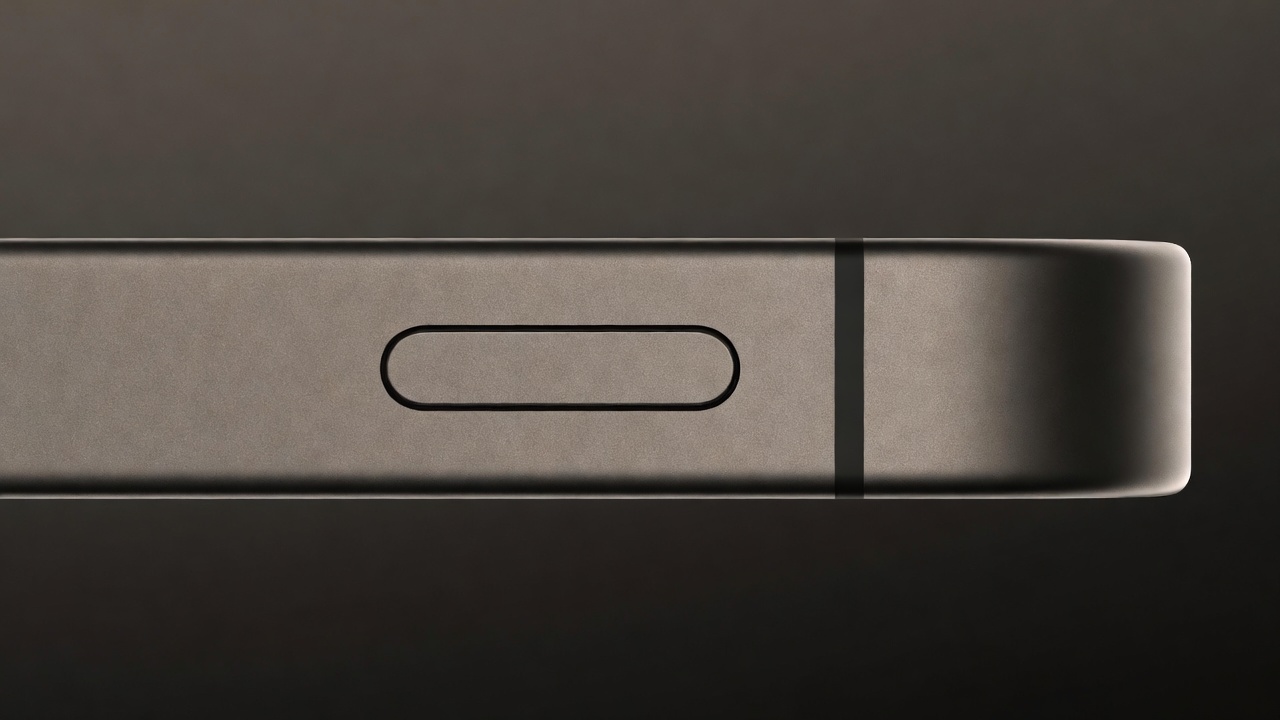 The flush capacitive design requires a different touch approach than physical buttons — surface area contact matters more than press force
Thermal Behavior: What Actually Happens When the Phone Gets Hot
Benchmarks run in controlled rooms; real life doesn’t. The iPhone 17 Pro Max’s redesigned vapor chamber (Apple’s biggest thermal upgrade in years) keeps surface temps lower longer under load (ProRes video, gaming, AR).
Less discussed: iOS 26’s tiered performance scaling. Instead of hard throttling, it progressively reduces GPU clocks, background tasks, then camera ISP quality — silently, no UI warning.
A long outdoor interview on a warm day might end with lower-quality footage in parts of the clip, without any indication.
Mitigations that work:
- Remove the case during extended sessions — the aluminum frame acts as a heat sink; cases insulate.
- Shade the phone between takes; device temp (not just ambient) triggers scaling.
- For gaming parallels, see my deep dive on Tecno Camon 30 overheating during Genshin Impact — similar habits (no case, breaks, airflow) apply here too.
Battery Intelligence: The Feature Apple Buried in Settings
Adaptive Power Mode in iOS 26 isn’t renamed Low Power Mode. It’s predictive ML that learns your patterns over 5–7 days, preemptively conserving power for predicted heavy-use windows without degrading foreground experience.
Enable: Settings → Battery → Power Mode → Adaptive.
Catch: It needs real consistency to shine. Many try for 2 days, see minimal change, and revert — too early.
Full optimization stack:
| Setting | Path | Recommendation |
|---|---|---|
| Power Mode | Settings → Battery → Power Mode | Adaptive — commit for two full weeks |
| Optimized Charging | Settings → Battery → Battery Health → Optimized Charging | Always On |
| 80% Charge Limit | Settings → Battery → Battery Health → 80% Limit | On daily; override for travel |
| Always-On Display Schedule | Settings → Display & Brightness → Always On → Schedule | Off midnight–7am |
| Background App Refresh | Settings → General → Background App Refresh | Wi-Fi Only or per-app |
| Location Services Audit | Settings → Privacy → Location Services | While Using where possible |
| Significant Locations | Settings → Privacy → Location Services → System Services | Disable if unused |
The 80% limit is huge for long-term battery health — lithium chemistry hates prolonged 100% charge. Override exists for travel days.
Like building discipline through consistent habits (as I explored in What Call of Duty Mobile Taught Me About Real-Life Discipline), give Adaptive Power time to “learn” your routine.
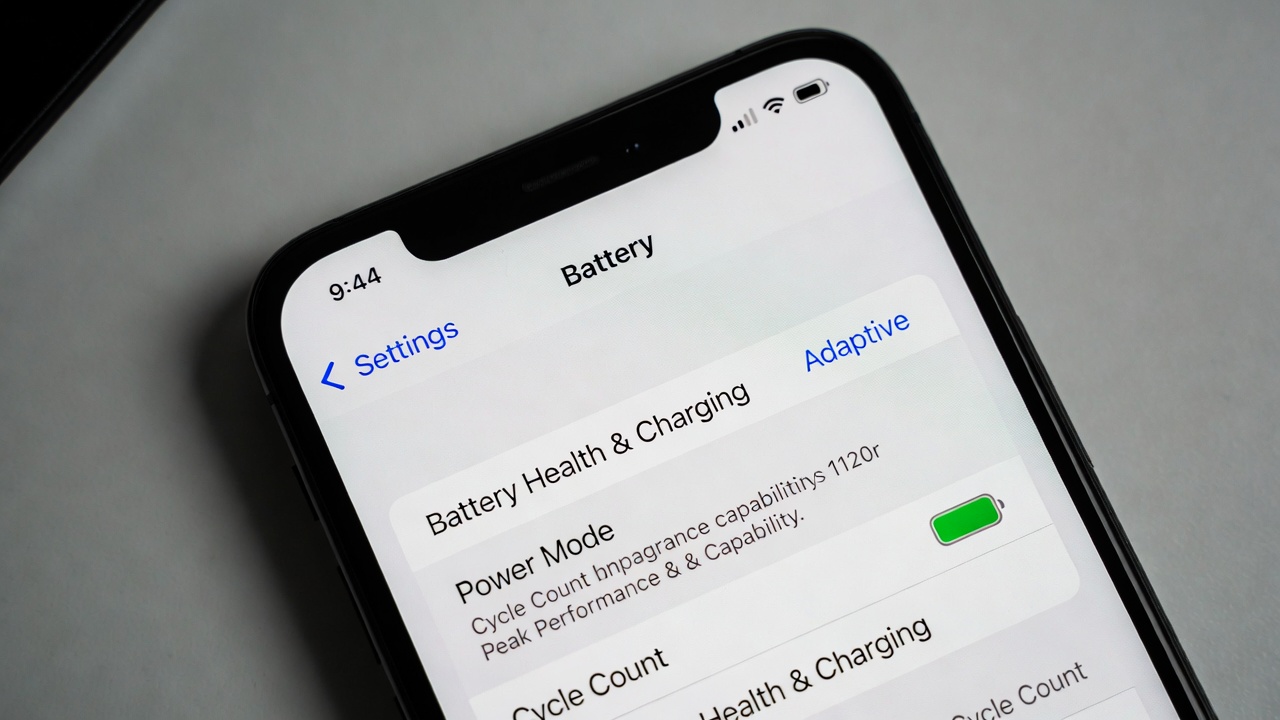 Adaptive Power Mode in iOS 26 — requires approximately one week of pattern learning before it delivers meaningful results
ProRes and the Storage Math Nobody Prepares For
ProRes RAW is pro-grade, but file sizes demand planning.
| Format | Resolution | File Size Per Minute (approx.) |
|---|---|---|
| HEVC | 4K 60fps | ~600 MB |
| ProRes 422 | 4K 30fps | ~1.7 GB |
| ProRes 422 HQ | 4K 60fps | ~4.2 GB |
| ProRes RAW | 4K 30fps | ~6–7 GB |
| ProRes RAW HQ | 4K 60fps | ~10–12 GB |
Ten minutes of ProRes RAW HQ ≈ 100–120 GB. Workflow problem, not just storage.
Best practice: Use USB-C SSD for direct recording (Settings → Camera → Record to External Storage). Bypasses internal limits; instant transfer to editing rig.
For casual ProRes, internal 512GB/1TB + 422 works fine. RAW is for heavy post-production latitude.
The Computational Photography Engine: What’s Different and Why It Matters
A19 Pro ISP enables smarter multi-frame fusion.
- Night mode uses short exposures → sharper moving subjects.
- Adaptive True Tone preserves accurate skin tones in mixed light — huge for portraits.
- Portrait mode depth separation now reliable up to ~5m (vs. ~2m prior) via LiDAR + computation.
Lens quick-guide:
| Shooting Situation | Optimal Lens | Reasoning |
|---|---|---|
| Portraits, people | 1x Main 48MP | Best aperture, skin tones, low-light |
| Architecture, interiors | 0.5x Ultrawide 48MP | Width, corrected perspective, full res |
| Sports, wildlife | 5x Telephoto | True optical reach |
| Travel, documentary | 2x (cropped main) | Natural view, no compromise |
| Low light | 1x Main | Largest sensor/aperture |
| Cinematic video | 1x / 24mm equiv. | Balanced FOV + stability |
iOS 26 Details That Change Daily Workflow
- Notification grouping now context-smart (urgency, relationships) — tweak in Settings → Notifications → Notification Priority.
- Spotlight understands natural language (“photos from Rome last summer”, “emails from Sarah about budget”) via Neural Engine.
- Back Tap (double/triple on back glass) — assign Screenshot, Shortcuts, etc. (Settings → Accessibility → Touch → Back Tap). Still underused gold.
- Live Voicemail transcribes in real time, shows on Lock Screen (Settings → Phone → Live Voicemail).
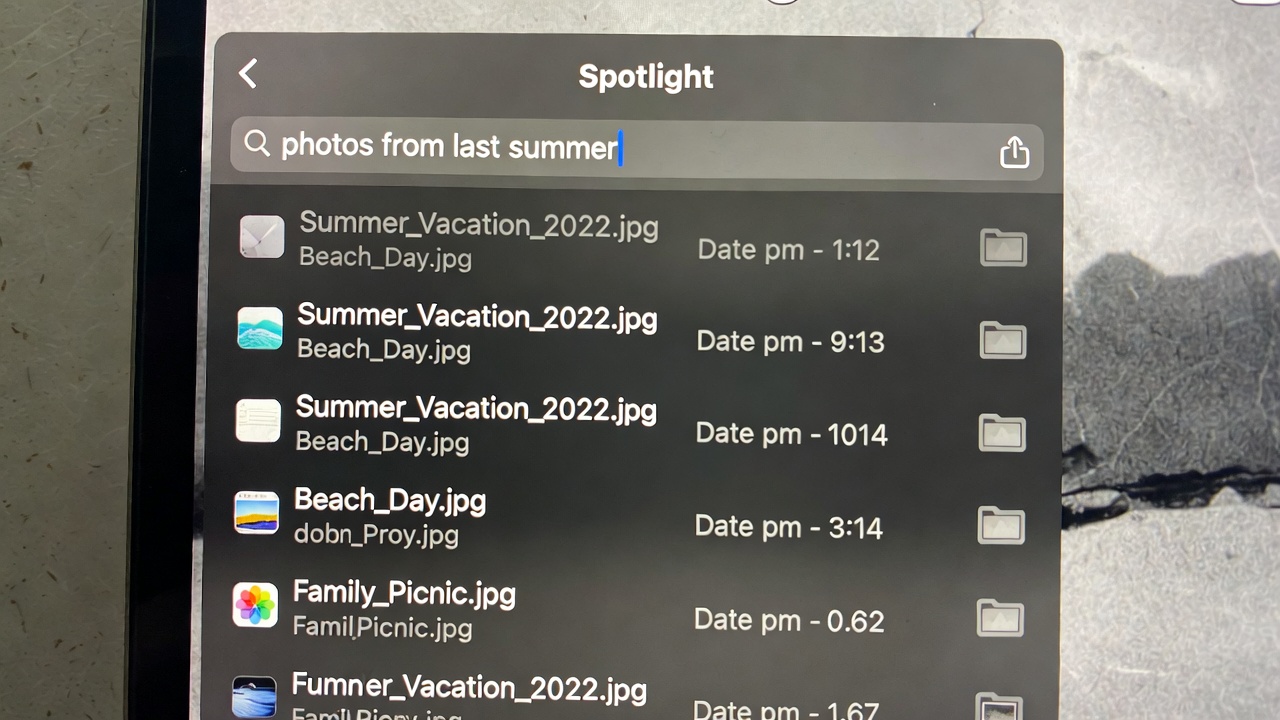 iOS 26 Spotlight parsing natural language queries — a shift from keyword matching to intent understanding that most users haven’t discovered
For more hidden gems style, see my Tecno Camon 30 Pro Hidden Features post — similar exploration mindset.
The USB-C Port Capabilities Apple Under-Communicates
USB 3.2 Gen 2 (20Gbps) enables:
- Fast ProRes transfers to laptop.
- Stage Manager extended desktop on external monitor.
- 5W reverse charging for AirPods/Watch (emergency trickle).
- Native USB-C drive access in Files app.
Quick Reference: Gestures Worth Memorizing
| Gesture | What It Does |
|---|---|
| Swipe down on Home Bar | Reachability |
| Long press Camera Control | Visual Intelligence |
| Swipe up + pause | App Switcher |
| Long press Lock Screen clock | Customize widgets/depth |
| Single tap Lock Screen clock | Date + next event |
| Double-tap Dynamic Island | Cycle Live Activities |
| Double tap back glass | Back Tap action |
Hidden Settings Worth Changing Immediately
| Setting | Path | What It Changes |
|---|---|---|
| Haptic Keyboard Feedback | Settings → Sounds & Haptics → Keyboard Feedback | Tactile typing feel |
| Reachability | Settings → Accessibility → Touch → Reachability | One-handed full screen |
| Action Button Hold Duration | Settings → Accessibility → Action Button | Snappier response |
| Camera Control Sensitivity | Settings → Camera → Camera Control | Fewer accidents |
| Siri Prefer Silent Responses | Settings → Siri → Siri Responses | Text instead of voice |
| Contact Key Verification | Settings → [Your Name] → Contact Key Verification | Secure identity checks |
| Eye Tracking | Settings → Accessibility → Eye Tracking | Gaze navigation (experimental, Accessibility-focused) |
| Live Voicemail Display | Settings → Phone → Live Voicemail | Real-time transcription on incoming calls |
| Announce Notifications | Settings → Accessibility → Spoken Content | AirPods read alerts aloud |
Minor Caveats (Not Deal-Breakers)
This post draws from extended daily use since launch, but a few notes for balance:
- Some tweaks (e.g., “roughly half” false-trigger reduction from Camera Control sensitivity) are experiential estimates — your mileage may vary based on finger size, grip, or case use. Test incrementally.
- Adaptive Power and Spotlight’s intent parsing shine after consistent use/learning periods; early impressions can underwhelm if rushed.
- ProRes file sizes are approximate (real results vary by scene complexity, frame rate, Open Gate vs. standard); always test short clips first.
- Features like Eye Tracking or advanced Visual Intelligence are powerful but niche/Accessibility-oriented — not everyday must-haves for everyone.
- As of February 2026, iOS 26 is on .3/.4 betas with ongoing refinements; some behaviors (e.g., thermal tiering visibility) could evolve in future point releases.
- These tips prioritize creators/power users. Casual owners might never need most — which is why reviewers often skip them.
If any tip transforms your experience, drop a comment or share your own tweaks. Enjoy the 17 Pro Max — it’s a beast when dialed in. By the end of this topic i want you to dive into my new post Xiaomi Phone durability
FAQ
Q: Is this post based on actual ownership of the iPhone 17 Pro Max?
Yes — I’ve been using it daily since launch in September 2025. These tips come from real-world habits, not just spec sheets or short review periods.
Q: Will these settings work on older iPhones or iOS versions?
Some will (e.g., Back Tap, Reachability, 80% Charge Limit, Optimized Charging), but many are specific to the iPhone 17 series hardware (Camera Control, Action Button tweaks, A19 Pro features) and iOS 26+. Always check your Settings app to see what’s available.
Q: How long should I give Adaptive Power Mode before judging it?
Give it at least 10–14 days of consistent daily use. The on-device ML needs real pattern data to make meaningful predictions. Early results are usually underwhelming.
Q: Is removing the case really worth it for thermal performance?
For short bursts or casual use, no. But during long ProRes recordings, extended 120fps slo-mo, or heavy gaming in warm conditions — yes, it can add 10–20+ minutes of sustained peak performance before scaling kicks in. The aluminum frame dissipates heat noticeably better naked.
Q: What’s the single biggest daily-use change you made after a month?
Assigning Visual Intelligence to the Action Button + lowering Camera Control sensitivity. Those two alone made the phone feel dramatically more responsive and useful in real life.
Q: Are ProRes RAW file sizes really that huge?
Yes — the numbers here are conservative averages. Complex scenes with lots of motion or detail can push ProRes RAW HQ 4K 60fps past 12 GB per minute. Always do a 30-second test clip first and check storage impact.
Q: Should I turn on the 80% Charge Limit permanently?
For everyday use in 2026, yes — it meaningfully extends battery lifespan over 2–3 years with almost no downside during the day. Use the one-tap override when you need a full charge for travel or long shoots.
Q: Why do reviewers rarely mention these quirks?
Most reviews are 1–2 week sprints under ideal conditions. Behavioral stuff like thermal tiering without warnings, Adaptive Power learning curves, or Camera Control touch re-training only becomes obvious after months of mixed real-life use.
Q: Any risk in tweaking Accessibility settings like Action Button Hold Duration?
Very low. Lowering it makes the button snappier without causing meaningful false triggers for most people. If you notice accidental activations, just slide it back up.
Q: Where can I find more of your smartphone deep-dives?
Check the related posts linked throughout this article, or browse the full archive at revibyte.blog for more hidden features, overheating fixes, and real-world comparisons.

Comments 0
Leave a comment