Table of Contents
Open Table of Contents
- Overview
- Why WhatsApp Keeps Getting Bigger Without You Noticing
- The Damage Report: What’s Actually Taking Space
- Step 1: Turn Off Auto-Download (Do This First)
- Step 2: Clean Up From Inside WhatsApp (Not Your Gallery)
- Step 3: Sort Out Your Backup Situation
- Step 4: Stop Saving to Your Gallery Automatically
- Step 5: Clear the App Cache
- The Group Chat Problem (And What to Do About It)
- Quick Reference: WhatsApp Storage Audit Checklist
- A Note on the “Just Buy More Storage” Argument
- Frequently Asked Questions
Overview
You checked your storage last week. It was fine — maybe 4 or 5 GB free. You haven’t downloaded anything new, haven’t taken a thousand photos, haven’t installed new apps. But today your phone is throwing that dreaded “storage almost full” warning in your face.
For many users, WhatsApp is one of the biggest hidden storage users on their device.
It’s not doing it maliciously. The app is just designed to save everything by default — every voice note someone sends you at 2 AM, every blurry video forwarded in a family group, every meme that’s been recycled across five different group chats this month alone. It all piles up quietly in the background, and most people only notice when it’s too late.
I’ve seen phones where WhatsApp alone was sitting on 11GB. On a 64GB device, that’s almost a fifth of total storage gone to one app. Let’s fix that.
Why WhatsApp Keeps Getting Bigger Without You Noticing
Before you go deleting things blindly, it helps to understand the actual breakdown of where the space goes. WhatsApp storage is split into a few categories most people don’t realise exist:
Auto-downloaded media — This is the biggest offender. By default, WhatsApp automatically saves photos, videos, audio files, and documents to your phone the moment they arrive. Every group chat you’re in is quietly dumping files into your internal storage around the clock.
Backups — WhatsApp creates local backups of your entire chat history regularly. These backups can run into gigabytes depending on how active your chats are, and they sit silently in your storage even when you also have Google Drive or iCloud backup enabled.
Cache files — Every time WhatsApp loads a sticker, a GIF, a profile photo, or a voice note you’ve already listened to, it caches that data so it loads faster next time. Cache can build up over time and may not be cleared automatically enough to prevent noticeable storage growth.
The “Archive” trap — Many people archive chats thinking that removes the media. It doesn’t. Archived chats and their media still live on your device. Archiving is just a visual folder trick.
The Damage Report: What’s Actually Taking Space
Open WhatsApp, go to Settings > Storage and Data > Manage Storage. What you’ll see is a ranked list of your chats sorted by storage size. Most people are genuinely shocked at what’s sitting at the top.
Here’s a general pattern of what the breakdown usually looks like across a typical active user’s phone:
| Storage Category | Typical Size Range | Culprit |
|---|---|---|
| Videos (received) | 2 GB – 8 GB | Group chats, forwarded clips |
| Photos (received) | 500 MB – 3 GB | Family groups, status saves |
| Audio & Voice Notes | 200 MB – 1.5 GB | Long voice note chains |
| Documents & PDFs | 100 MB – 800 MB | Work or school groups |
| Local Backup | 300 MB – 4 GB | Chat history accumulation |
| App Cache | 100 MB – 600 MB | Stickers, GIFs, previews |
The numbers on the right aren’t worst-case scenarios. They’re what I’ve personally seen on phones brought to me by people complaining about low storage. The video category almost always wins.
Step 1: Turn Off Auto-Download (Do This First)
This is the single most impactful change you can make. Go to:
Settings > Storage and Data > Media Auto-Download
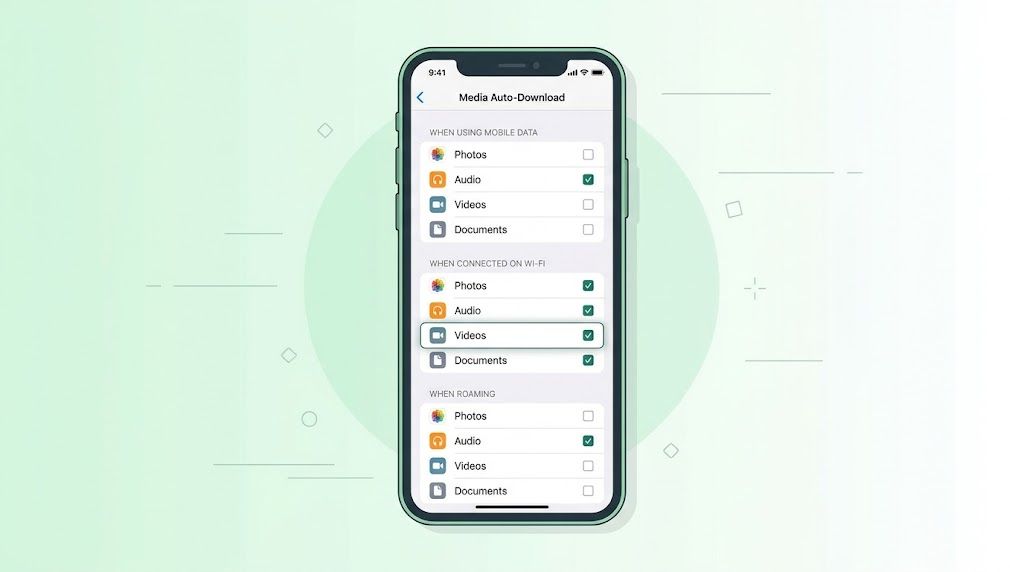
You’ll see three sections: When using mobile data, When connected to Wi-Fi, and When roaming. By default, photos are set to auto-download on both mobile data and Wi-Fi. Videos are usually set to download on Wi-Fi. Turn all of them off.
Yes, all of them. You can still manually download anything you actually want to see — you just tap on it. What you’re stopping is WhatsApp from hoarding hundreds of files you’ll never look at again.
If turning everything off feels too extreme, at minimum disable video auto-download on Wi-Fi. Videos are where the bulk of the storage goes, and Wi-Fi is when most of the damage happens because there’s no data cap warning to slow things down.
Step 2: Clean Up From Inside WhatsApp (Not Your Gallery)
⚠️ Before you delete anything: Make sure any photos, videos, or documents you actually want to keep are backed up elsewhere — your Google Photos, a cloud drive, or your PC. Once media is removed from your device this way, recovery is not guaranteed. A few minutes of checking now saves a lot of regret later.
Most people make the mistake of going to their phone gallery or file manager to delete WhatsApp media. That approach works, but it’s slow and you can’t easily see which chat the files came from. The smarter way is to delete from inside WhatsApp itself.
Go to Settings > Storage and Data > Manage Storage.
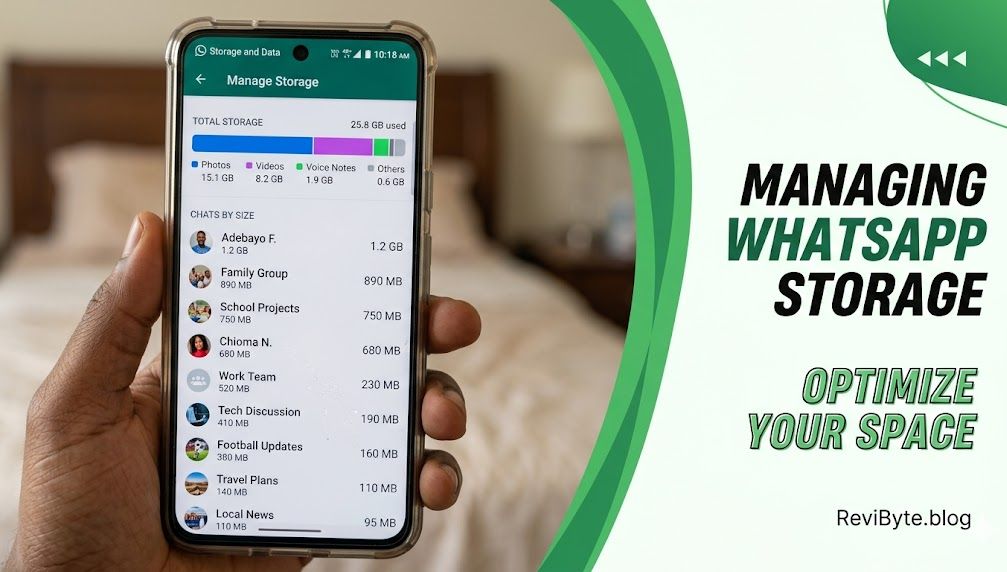
You’ll see your top storage-eating chats listed. Tap on any chat and WhatsApp shows you the media broken down by type — photos, videos, GIFs, voice notes, documents. You can select all and delete in one tap, or be selective about what you keep.
For group chats where you genuinely never want to save anything, you can clear the entire chat’s media in one go. For personal chats, it’s worth spending 30 seconds scrolling through before deleting everything.
A few things worth knowing before you start deleting:
- Deleting media from Manage Storage removes it from your phone, not from the chat. The message stays; only the downloaded file is gone.
- If someone sends you a video and you delete the download, you can re-download it from the chat as long as they haven’t deleted it on their end.
- Documents and PDFs saved to your phone’s storage (not just viewed in-app) need to be deleted separately from your file manager.
Step 3: Sort Out Your Backup Situation
WhatsApp’s backup system is one of the least-understood parts of the app. There are actually two separate backups happening if you have Google Drive or iCloud connected: a local backup stored on your phone, and a cloud backup stored in your account.
The local backup file is usually found at:
Internal Storage > WhatsApp > Databases
These .db.crypt files are the actual backups of your chat history. WhatsApp may keep multiple local backup files depending on your device and backup settings. On an account that’s been active for a few years with active groups, this folder alone can sit at 2–4 GB.
If you have cloud backup enabled and it’s running successfully, you don’t need the local backups. You can delete everything in the Databases folder except the most recent file (msgstore.db.crypt15 or similar). Don’t delete the most recent one — that’s your safety net if something goes wrong before the next cloud backup completes.
To reduce backup size going forward, go to Settings > Chats > Chat Backup > Include videos and turn that off. Videos alone can make your backup file three to five times larger than it needs to be.
Step 4: Stop Saving to Your Gallery Automatically
WhatsApp has a per-chat setting that controls whether media from that specific chat gets saved to your phone’s camera roll or gallery. By default, it’s turned on for all chats — which means every photo and video that lands in any of your chats is being duplicated into your gallery.
To turn it off globally: Settings > Chats > Save to Camera Roll / Save to Gallery — toggle this off.
To turn it off for specific chats only (useful if you have a few groups you don’t care about): Open the chat > tap the contact or group name at the top > Media Visibility — set to No.
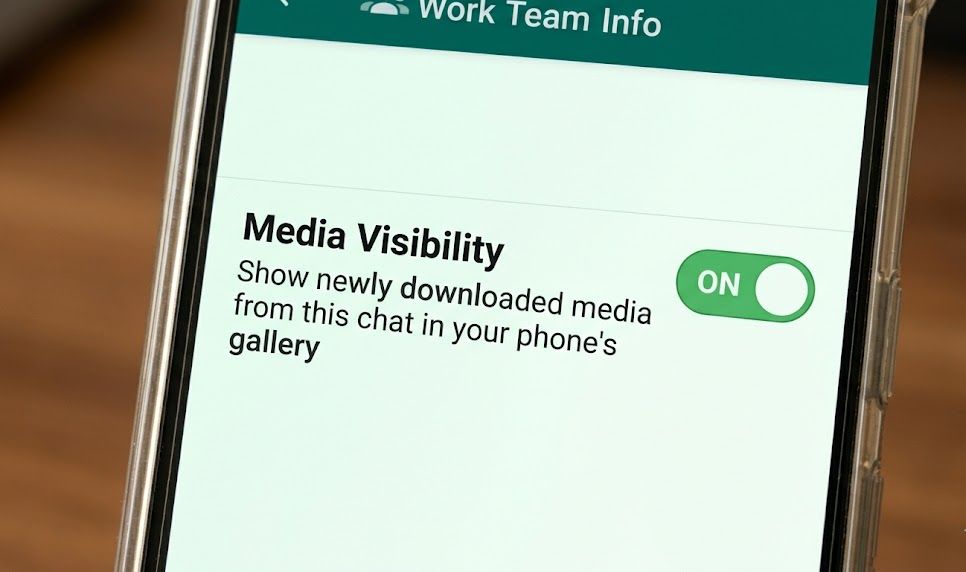
This doesn’t affect media you’ve already saved. It just stops new media from being automatically duplicated going forward.
Step 5: Clear the App Cache
The cache isn’t the biggest storage item on this list, but it builds up steadily and there’s no reason to keep it. Go to your phone’s Settings > Apps > WhatsApp > Storage > Clear Cache.
On most Android phones this is safe to do at any time — you won’t lose any chats, messages, or media. The app will just reload a few things slightly slower on the next open, then rebuild its cache from scratch.
Worth doing once a month if storage is tight on your device. If you’re on a phone where 64GB is starting to feel cramped, this is one of those small habits that actually compounds over time. Related: if you’re generally fighting your Android’s performance, the tips in this post about making Android feel fast again cover a few more angles worth knowing.
The Group Chat Problem (And What to Do About It)
Let’s be honest: the real storage drain is almost always a handful of group chats. The one with your extended family. The one from work. The alumni group. The neighbourhood association that forwards the same viral video four times a week.
WhatsApp actually gives you a pretty useful setting for muting a chat’s media without leaving it. You can set any group chat to not save media at all — go into the group, tap the name at the top, scroll to Media Visibility, and turn it off. You’ll still get messages and see media when you tap on it; it just won’t auto-save to your device.
For chats where you genuinely don’t need to keep the history — old group chats you’re still in but barely read — consider clearing the chat entirely. Long press the chat > More > Clear Chat. You can choose to delete media or keep it. This won’t remove you from the group or affect anyone else’s chat.
One more thing: if you’re in more than 15–20 active group chats, that’s where the real problem compounds. Each of those groups might be sending a modest amount of media, but across 20 groups it adds up fast. Worth auditing which groups you actually need to be in.
Quick Reference: WhatsApp Storage Audit Checklist
| Action | Where to Find It | Impact |
|---|---|---|
| Disable photo auto-download | Settings > Storage and Data | High |
| Disable video auto-download | Settings > Storage and Data | Very High |
| Clear media from top groups | Settings > Storage and Data > Manage Storage | Very High |
| Disable Save to Gallery | Settings > Chats | Medium |
| Delete old local backups | File Manager > WhatsApp > Databases | High |
| Disable video in backup | Settings > Chats > Chat Backup | High |
| Clear app cache | Phone Settings > Apps > WhatsApp | Low–Medium |
| Turn off media visibility per chat | Open Chat > Group Name > Media Visibility | Medium |
A Note on the “Just Buy More Storage” Argument
If you’ve read posts like why most people don’t actually need 1TB of storage, you’ll already know that more storage doesn’t solve a bad habit — it just delays the problem. A phone with 256GB that still has auto-download enabled and six years of unmanaged WhatsApp backups will hit the wall eventually.
The fixes above take about 10 minutes to implement and will make a real difference. And if storage anxiety is a regular thing for you, it might also be worth reading about which smartphone features you’re probably not using — sometimes the solution is already sitting in your phone settings.
Frequently Asked Questions
Will clearing WhatsApp storage delete my messages?
No. Clearing media (photos, videos, voice notes) through WhatsApp’s Manage Storage only removes the downloaded files from your device. Your chat messages, text history, and the ability to re-download media from the sender remain intact. The exception is if you clear the chat itself or delete the app — those actions do affect messages.
How often should I clear WhatsApp storage?
Once a month is a reasonable habit if you’re in several active group chats. If you disable auto-download as described above, you’ll accumulate far less junk over time and might only need to do a deeper clean every 2–3 months.
Is it safe to delete files from the WhatsApp folder in my file manager?
Mostly yes, with one caveat. You can safely delete everything in the Media subfolder (that’s just downloaded photos, videos, and documents). Be careful inside the Databases folder — don’t delete the most recent backup file. Deleting the wrong file there could cause issues if you need to restore your chats.
Does WhatsApp Channels or Status content take up storage too?
Status updates you view are temporarily cached but typically clear themselves after 24 hours. Channels content you haven’t interacted with doesn’t usually persist. The main storage drain is still chat media, voice notes, and backups.
Will turning off auto-download affect how WhatsApp works?
Not meaningfully. You’ll still receive all messages, calls, and notifications exactly as before. When someone sends you a photo or video, you’ll see a small download icon on it instead of it loading automatically. One tap downloads it. Most people find this preferable once they try it — you only download things you actually want to see.
My phone shows WhatsApp is 6GB but Manage Storage only shows 3GB — why the difference?
The discrepancy usually comes from the app’s internal data (cache, databases, app files) not being shown in WhatsApp’s own storage manager, which only counts media files. Clearing cache from your phone’s app settings will account for some of that gap. Local backups in the Databases folder account for most of the rest.
Does reinstalling WhatsApp help with storage?
It can, but only if you do a proper fresh install — meaning you don’t restore from backup. A reinstall that restores your full chat history, including media, will end up in roughly the same place. If the goal is just storage recovery, the steps above are more surgical and you don’t risk losing anything.
Last updated: June 2026. Steps verified on WhatsApp for Android (version 2.26.x). iOS settings follow the same general path with minor naming differences.

Comments 0
Leave a comment