Table of Contents
Open Table of Contents
- Best Gyroscope Settings for PUBG Mobile 2026
- What the Gyroscope Actually Does in PUBG Mobile
- How to Enable Gyroscope in PUBG Mobile
- Best Gyroscope Sensitivity Settings — 2026
- Device-Specific Adjustments
- Best Gyroscope Settings for Low-End Android Devices
- Gyroscope Tips That Actually Help
- Scope On vs Always On — Which One Is Right for You?
- FAQ
Best Gyroscope Settings for PUBG Mobile 2026
Gyroscope is one of the most impactful settings in PUBG Mobile — when it’s configured correctly, it makes recoil control noticeably more consistent, especially during sprays and mid-range ADS fights. When it’s wrong, every fight feels like wrestling the crosshair back into place.
This guide covers the best gyroscope sensitivity values for 2026, broken down by playstyle and device tier. The settings below are based on common recoil patterns and feedback from PUBG Mobile players across different device categories — including budget Android phones that most guides ignore. If you’ve been running outdated configs, recent weapon handling changes mean those older numbers may no longer feel right, so this is a good time to recalibrate.
Quick Recommendation — New to Gyroscope?
Start here before touching anything else:
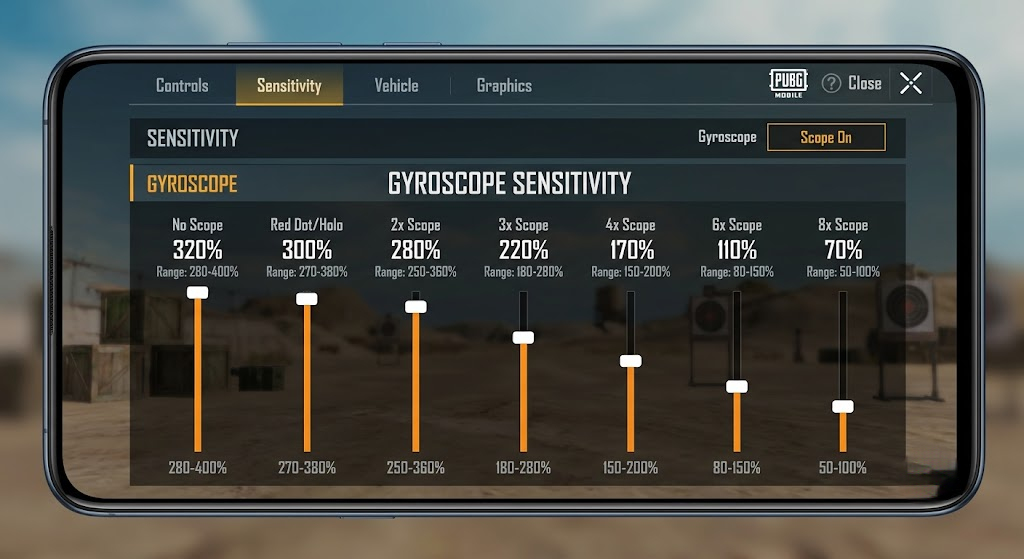
Setting Value Mode Scope On No Scope 320% Red Dot / Holo 300% 2x Scope 280% 3x Scope 220% 4x Scope 170% 6x Scope 110% 8x Scope 70% Run these for 3–5 matches without changing anything. You need a baseline before you can tell what needs adjusting.
What the Gyroscope Actually Does in PUBG Mobile
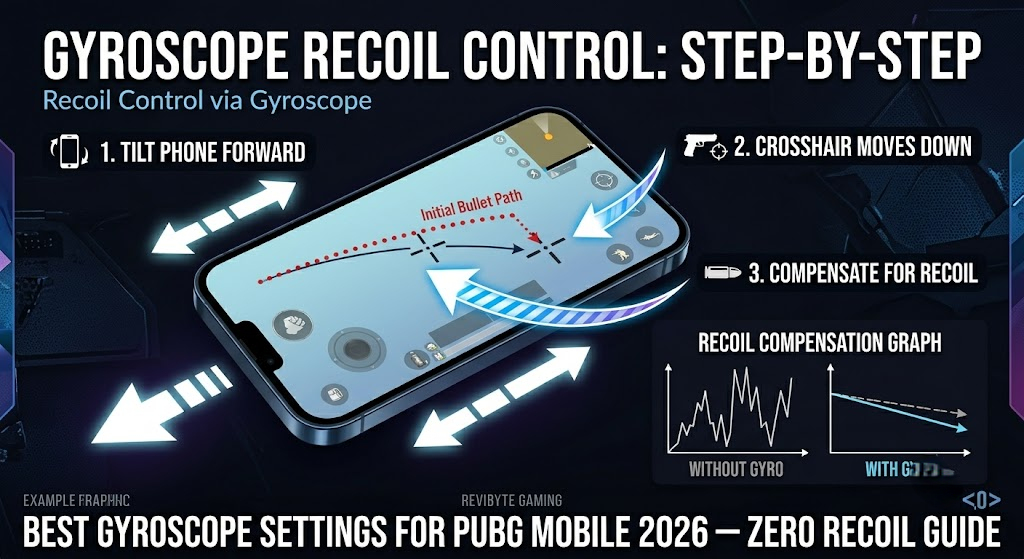
The gyroscope uses your phone’s motion sensor to help you physically tilt your way to better aim. Instead of dragging your thumb down to compensate for recoil, you tilt the phone slightly downward — and the crosshair follows. For sprays and mid-range fights, this is a genuinely massive advantage.
You’ve got two modes:
- Scope On — gyroscope only activates when you’re aiming down sights. This is the smarter starting point for almost everyone.
- Always On — gyroscope is active constantly, even while you’re running. Skilled players use this, but it takes weeks to stop accidentally moving your aim while repositioning.
Start with Scope On. Seriously.
How to Enable Gyroscope in PUBG Mobile
- Tap the settings icon in the top-right corner of the lobby.
- Go to Controls → Gyroscope.
- Set it to either Scope On or Always On.
- Head to the Sensitivity tab and scroll down to the Gyroscope section.
- Adjust each scope tier individually.
One thing that trips people up — calibrate your gyroscope on a flat surface before you test anything. An uncalibrated sensor will drift, and you’ll spend hours blaming your settings when the real issue is your phone sitting on a lumpy couch.
Best Gyroscope Sensitivity Settings — 2026
These values are a solid starting point based on current meta and community-tested weapon behavior. Recent PUBG Mobile updates have adjusted weapon handling and recoil patterns for several weapons, so older sensitivity configs from 2024 may not feel as stable anymore — particularly on ARs and DMRs.
General Purpose (Balanced — Scope On Mode)
| Scope | Recommended Range | Starting Point |
|---|---|---|
| No Scope | 280–400% | 320% |
| Red Dot / Holo | 270–380% | 300% |
| 2x Scope | 250–360% | 280% |
| 3x Scope | 180–280% | 220% |
| 4x Scope | 150–200% | 170% |
| 6x Scope | 80–150% | 110% |
| 8x Scope | 50–100% | 70% |
The further you zoom, the more a tiny tilt magnifies. That’s why 8x sensitivity needs to be dramatically lower than Red Dot — what feels like a small hand movement becomes a wild overshoot at long range.
Aggressive / Rush Playstyle
If you’re pushing every fight inside 30 meters and using SMGs or shotguns, bump your close-range values higher for faster tracking.
| Scope | Setting |
|---|---|
| No Scope | 380–420% |
| Red Dot / Holo | 350–400% |
| 2x Scope | 300–350% |
| 3x Scope | 200–250% |
| 4x Scope | 160–185% |
| 6x Scope | 90–130% |
| 8x Scope | 55–80% |
Sniper / Passive Playstyle
If you’re holding angles and making every shot count, go lower across the board. Precision beats speed when you’re 200m away with a bolt-action.
| Scope | Setting |
|---|---|
| No Scope | 250–300% |
| Red Dot / Holo | 230–280% |
| 2x Scope | 200–250% |
| 3x Scope | 150–200% |
| 4x Scope | 130–160% |
| 6x Scope | 70–100% |
| 8x Scope | 45–65% |
Device-Specific Adjustments
Your phone matters more than most guides admit. A Dimensity 9300-powered flagship with a 144Hz panel handles high gyro sensitivity without issue. A Helio G88 running at 60fps on medium graphics is a different story.
| Device Tier | Suggested Adjustment |
|---|---|
| Flagship (120Hz+, 8GB+ RAM) | Use top end of each range, Always On viable |
| Mid-range (90Hz, 6GB RAM) | Use middle of each range, Scope On recommended |
| Budget (60Hz, 3–4GB RAM) | Use lower end of each range, reduce No Scope to 250–280% |
| Overheating device | Drop all values by 20–30%, disable background apps |
One thing I’ve noticed on budget devices specifically — high gyro sensitivity combined with thermal throttling mid-game creates inconsistency. Your 350% Red Dot feels different in round 1 versus round 20 when the phone’s hot. Keep values conservative if your device runs warm.
Best Gyroscope Settings for Low-End Android Devices
Budget phones — think the Tecno Spark series, Infinix Hot lineup, or anything running 3–4GB RAM at 60fps — need a different approach entirely. High gyro values feel unstable on these devices because frame drops create gaps between your tilt input and the in-game response. The crosshair doesn’t catch up fast enough, and you end up overcompensating.
These settings are tuned specifically for 60Hz devices with limited RAM, prioritizing control over speed:
| Scope | Low-End Setting |
|---|---|
| No Scope | 240–270% |
| Red Dot / Holo | 220–260% |
| 2x Scope | 200–240% |
| 3x Scope | 160–190% |
| 4x Scope | 120–150% |
| 6x Scope | 70–90% |
| 8x Scope | 45–60% |
A few things that make a real difference on underpowered hardware:
- Always use Scope On, never Always On. The sensor polling rate on budget chips isn’t fast enough to keep up with constant gyro input during movement. Always On will cause drift.
- Close background apps before a match. Even one background process taking 100MB of RAM creates micro-stutters that make high gyro sensitivity feel broken.
- Lower graphics to Smooth + Frame Rate to High. Stable 40fps is dramatically better for gyro consistency than fluctuating between 30 and 50fps on Balanced graphics.
- If the phone throttles, your settings shift. Budget devices thermal-throttle fast in hot climates. What works in round 1 of Classic may feel sluggish by round 3. This isn’t a settings problem — it’s a hardware ceiling.
Gyroscope Tips That Actually Help
Don’t copy pro player configs blindly. A Korean pro playing on a flagship with a cooling fan accessory in a controlled environment will run values that make your ₦30,000 Tecno feel broken. Use their settings as a ceiling, not a target.
The wrist does most of the work. You’re not tilting your entire arm — small wrist rotations are enough. If you’re moving your shoulder, the sensitivity is too low.
AKM has heavy vertical recoil — account for it. The AKM kicks harder than most ARs, so you’ll need to tilt the phone more deliberately in the first several rounds of a spray compared to something like the M416. Pair it with a compensator and the gyro handles the rest much more comfortably. If you want a full breakdown of how these guns compare, check the best guns guide for PUBG Mobile 2026.
Train in the Practice Range, not Ranked. Spend 10–15 minutes per session doing spray tests at 50 meters before you touch competitive mode. Getting reps in a low-stakes environment is the only way to build muscle memory without wasting your rating. Pair this with the right sensitivity settings for PUBG Mobile for camera and ADS, since gyro doesn’t work in isolation.
Calibrate regularly. If you switch chairs, tables, or just have the phone case sitting at a new angle, re-calibrate. Small shifts in how you hold the device compound into aim drift over a session.
Scope On vs Always On — Which One Is Right for You?
This question comes up constantly, so here’s a straight answer.
Scope On is better for:
- Anyone who’s been playing without gyro and wants to add it
- Players who move around a lot while holding the phone at varying angles
- Budget device users where consistent sensor readings matter more
Always On is better for:
- Experienced gyro players with consistent holding posture
- Players who do a lot of hipfire spraying and want gyro to assist there too
- Anyone comfortable enough that the gyro feels like an extension of their thumb rather than a second input to manage
There’s no mechanical advantage to Always On unless you’ve already mastered Scope On. Don’t rush it.
FAQ
Does the gyroscope work on all Android phones? Most modern Android devices have a gyroscope sensor built in, but some ultra-budget phones in the ₦30,000–₦50,000 range do not. You can check by downloading a sensor testing app or going into your phone’s settings under “Motion & Gestures.” If the option appears greyed out in PUBG Mobile settings, your device likely doesn’t have one.
What’s the difference between gyroscope sensitivity and camera sensitivity in PUBG Mobile? Camera sensitivity controls how fast your view moves when you swipe with your thumb. Gyroscope sensitivity controls how much your aim shifts when you physically tilt the phone. They stack together — which is why very high camera sensitivity combined with high gyro can feel completely unplayable.
Will gyroscope help me reduce recoil? Yes, but it’s not automatic. The idea is that you tilt the phone downward as the weapon kicks upward, which physically compensates for vertical recoil. It takes practice before this becomes a reflex rather than a conscious action.
My gyroscope keeps drifting even when I’m not tilting the phone. What’s wrong? This is almost always a calibration issue. Close PUBG Mobile, place your phone flat on a table, and use a sensor calibration app to reset the gyroscope baseline. If the drift continues, background apps or an overheating processor can cause inconsistent sensor readings.
Should I use gyroscope in TPP or only FPP? Gyroscope is useful in both modes. FPP players tend to benefit more from high-sensitivity gyro because the perspective makes precise ADS tracking more important. In TPP, many players keep gyro for scoped fights only, since peeking and camera work is handled differently.
What’s a good gyroscope setting for the M416 specifically? For M416 with a 3x scope, somewhere around 200–230% tends to feel stable for medium-range sprays. The M416 has manageable horizontal recoil, so the gyro is mainly handling vertical kick. If you’re using 4x, drop to 160–180%.
Does gyroscope drain battery faster? Slightly, yes. The gyroscope sensor itself is low-power, but the increased aim precision often leads to longer engagements and more active gameplay, which puts more demand on the GPU and CPU. The sensor alone won’t noticeably affect battery life, but if you’re already on low battery, it’s not the place to worry about saving power.
Can I use gyroscope at 30 FPS? You can, but it’s not ideal. At 30fps, there’s a visible delay between your physical tilt and the in-game crosshair movement. This makes precise recoil compensation harder because you can’t see the results of your adjustment fast enough to correct it. If you’re stuck at 30fps, use Scope On mode with conservative values — no higher than 200–250% on close-range scopes — and keep expectations realistic. 60fps is the minimum where gyro really starts to feel responsive.
Why do pro players use 300%+ gyroscope sensitivity? High sensitivity means less physical movement is needed to move the crosshair a large distance. Pro players develop the muscle control to make extremely small, precise tilts at those values. It looks effortless because they’ve spent thousands of hours building that precision. For most players, starting at 300%+ means overshooting constantly until the muscle memory is built. It’s not wrong to aim for it — just treat it as a destination, not a starting point.
Is gyroscope worth using if my device doesn’t have a sensor? No. There’s no software workaround that replicates actual gyroscope input. If the option is greyed out in PUBG Mobile settings, your device doesn’t have the hardware. Focus on optimizing your camera and ADS sensitivity settings instead — a well-tuned thumb setup can be just as competitive at lower ranks.
Last updated: June 2026.
Also on ReviByte: Best Sensitivity Settings for PUBG Mobile 2026 · Best Guns in PUBG Mobile 2026

Comments 0
Leave a comment