Table of Contents
Open Table of Contents
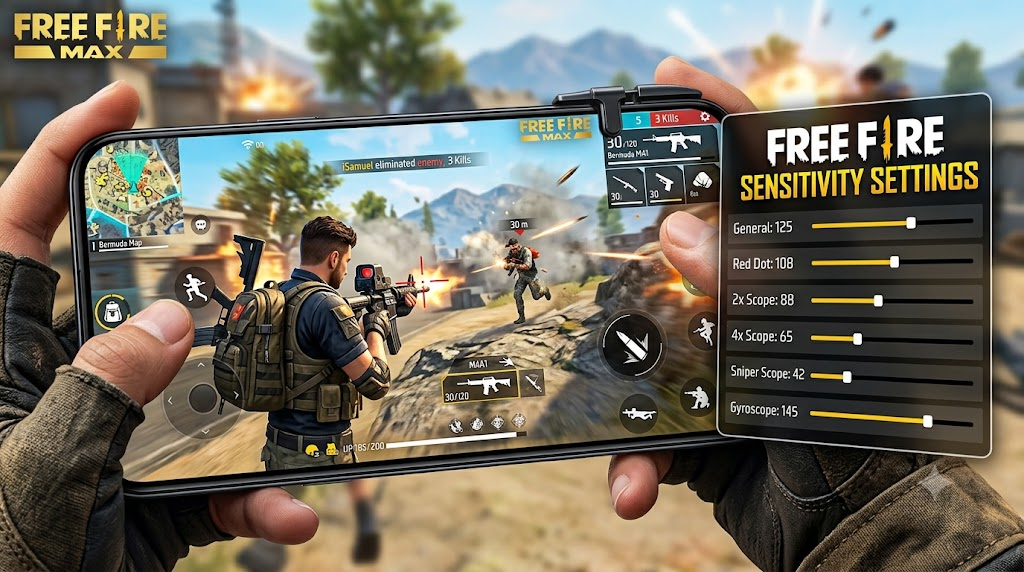
- Best Sensitivity Settings for Free Fire 2026
- Why Sensitivity Settings Matter More in Free Fire Than You Think
- General Sensitivity Settings
- Scope Sensitivity (ADS)
- Gyroscope Sensitivity (If You Use It)
- How to Test and Lock In Your Settings
- Device-Specific Notes
- Best Sensitivity for Headshots in Free Fire
- Best Sensitivity Settings for Low-End Devices
- Best Sensitivity Settings for 90FPS Phones
- How to Reset Sensitivity in Free Fire
- FAQ
Best Sensitivity Settings for Free Fire 2026
I’ve played enough Free Fire matches to know that raw game sense only carries you so far. At some point, your sensitivity settings either work for you or they actively fight you — and most players are losing that fight without realising it.
Wrong sensitivity doesn’t just mean slow turns or shaky aim. It means you’re compensating constantly: dragging your thumb harder than you should, overshooting enemies at close range, or losing gunfights in the final ring because your crosshair couldn’t track a player strafing two metres in front of you. That’s fixable. And it starts in the settings menu.
This guide breaks down the settings that worked well during my testing on mid-range Android devices — not the ones every YouTuber copies from a pro player who plays on a gaming phone with a 165Hz display. These are starting points for real mobile players, with notes on how to adjust based on your device and playstyle.
Why Sensitivity Settings Matter More in Free Fire Than You Think
Free Fire is faster than it looks. The time-to-kill is short, movement is snappy, and a lot of gunfights happen at close to mid range where micro-adjustments in your aim make the entire difference. Unlike BGMI or CODM where you can sometimes spray through a mistake, in Free Fire you either hit your shots cleanly or you’re dead.
Your sensitivity settings control how quickly your camera and crosshair respond to finger movement. Too high and you’re all over the place — great for 360 turns, terrible for holding a headshot on a moving target. Too low and you feel like you’re dragging through mud, which is especially punishing when someone flanks you and you need to spin fast.
The goal isn’t the “highest” or “lowest” setting. The goal is control at every engagement distance.
General Sensitivity Settings
These affect your camera movement when you’re not ADS (aiming down sights). Think of this as your free-look and hip-fire sensitivity. All values below are based on Free Fire’s current 0–200 sensitivity scale — if your sliders only go to 100, your game version likely needs updating.
| Setting | Baseline Range | Notes |
|---|---|---|
| General | 150 – 170 | Controls overall camera movement and hip-fire responsiveness |
| Red Dot | 140 – 158 | Balanced for close-range flicks |
| 2x Scope | 120 – 138 | Good for mid-range tracking |
| 4x Scope | 88 – 105 | Slows down for precision at distance |
| Sniper Scope | 45 – 62 | Sniper scopes need the most control |
| Free Look | 130 – 148 | For map awareness while moving |
If you’re on a budget device — say a Tecno Camon 30 or a Galaxy A-series — I’d lean toward the lower end of each range. Higher-end devices handle fast inputs more accurately, so you can push the values up without the jitter you’d get on a phone struggling to hold 60fps.
Scope Sensitivity (ADS)
This is where most players get it wrong. A lot of guides tell you to match your scope sensitivity to your general sensitivity. That’s lazy advice. Each scope sits at a different zoom level, and each one needs a different feel.
| Scope | Baseline Range | Notes |
|---|---|---|
| Red Dot / Iron Sight | 148 – 165 | Quick snaps, close fights |
| 2x Scope | 128 – 145 | Track without overshooting |
| 4x Scope | 88 – 105 | Controlled drag shots |
| Sniper Scope | 42 – 58 | Precision pixel-level adjustments |
The 4x is probably the one you’ll spend the most time adjusting. I’ve seen players drop it lower if they play a very passive, long-range style. If you push aggressively and use the 4x at 50–80 metre engagements more than 150+ metres, go slightly higher — closer to the top of the range.
Gyroscope Sensitivity (If You Use It)
Gyroscope is genuinely useful in Free Fire if you take time to learn it. It lets you make fine aim adjustments by physically tilting your phone, which reduces how much thumb movement you need to track or correct during a fight. Once it clicks, your aim starts feeling more fluid — especially at mid-range with scopes.
That said, it’s not for everyone. If you don’t feel comfortable holding your phone at different angles mid-fight, skip it. Bad gyro is worse than no gyro.
| Setting | Suggested Starting Range |
|---|---|
| General | 165 – 188 |
| Red Dot | 155 – 175 |
| 2x Scope | 138 – 158 |
| 4x Scope | 105 – 125 |
| Sniper Scope | 55 – 72 |
Keep gyro sensitivity noticeably higher than your touch sensitivity — the whole point is that small physical movements handle fine adjustments faster than your thumb can.
How to Test and Lock In Your Settings
Here’s the thing nobody tells you: finding your sensitivity isn’t a one-session process. It takes deliberate repetition.
- Start with the values above as your baseline.
- Play 5 training ground sessions — not ranked, not casual. Focus entirely on tracking moving bots and snapping to stationary ones at different distances.
- Adjust one value at a time. If your 2x scope feels too twitchy, drop it by 8–10 points and test again. Don’t change three settings in one session — you won’t know what fixed what.
- Play 10 real matches before judging anything. Your muscle memory needs time to adjust before you can make an honest call on whether a setting is actually wrong or if you’re just not used to it yet.
- Revisit after a week. Your hands adapt. What felt fast at first might feel perfectly normal after consistent play.
The biggest mistake I see is players changing settings every two days because they had a bad match. Variance is real — sometimes you lose gunfights because the other player just had better positioning. Your settings aren’t always the culprit.
Device-Specific Notes
These recommendations are calibrated for mid-range Android devices running Free Fire at 60fps. If you’re on something more powerful or playing at 90fps+, your touch inputs register slightly differently, and you may want to experiment pushing most values 10–20 points higher on the 0–200 scale.
If you’re on a lower-end device running the game at 30fps, I’d recommend dropping your general and red dot sensitivity by 20–30 points from the main baseline ranges. At lower frame rates, high sensitivity becomes harder to control because you’re getting fewer frames of visual feedback per swipe.
Best Sensitivity for Headshots in Free Fire
Headshots in Free Fire come down to two things: crosshair placement before the fight starts, and fine control during it. Sensitivity plays a direct role in the second part.
For headshot-focused play, you want your red dot and iron sight sensitivity slightly lower than you’d normally run — enough to slow the flick just a hair so your crosshair lands on the head instead of sliding past it. In my experience, some players find that lowering red dot sensitivity slightly into the 138–148 range makes headshot flicks easier to control when snapping to moving targets at 10–20 metres.
For 2x scope headshots, the same logic applies. Dropping to around 118–128 gives you more precise control on the horizontal flick without making the scope feel sticky. The idea isn’t to slow everything down — it’s to remove the excess overshoot that causes you to drag through the hitbox instead of landing on it cleanly.
Hip-fire headshots are a different challenge entirely and depend more on crosshair placement than sensitivity tuning. If you’re constantly hitting body shots while hip-firing, the issue is usually where your crosshair is sitting before you engage, not what your general sensitivity is set to.
Best Sensitivity Settings for Low-End Devices
If you’re running Free Fire on a budget Android phone — anything that struggles to hold a stable 30fps, heats up mid-match, or has less than 3GB of RAM — the sensitivity ranges in the main table above will likely feel too fast and hard to control.
Lower-end devices may have slower touch response and more frame drops, which can make high sensitivity harder to control.
| Setting | Baseline Range (Low-End) |
|---|---|
| General | 120 – 138 |
| Red Dot | 108 – 125 |
| 2x Scope | 92 – 110 |
| 4x Scope | 65 – 82 |
| Sniper Scope | 30 – 44 |
| Free Look | 100 – 118 |
These values are deliberately conservative. The goal is giving your device enough room to register your inputs accurately without the jitter that comes from asking a low-spec phone to process fast swipes at high frame costs.
Also worth doing: lower your in-game graphics to the lowest stable setting before adjusting sensitivity. Sensitivity tuning on a device that’s thermally throttling mid-match is a waste of time — the frame inconsistency will make your settings feel different every few minutes.
Best Sensitivity Settings for 90FPS Phones
Playing Free Fire at 90fps on a device that supports it — whether that’s a gaming phone or a flagship with an unlocked frame rate mode — changes how your inputs feel at a fundamental level. More frames means more visual feedback per swipe, which means the same sensitivity value will feel slightly slower and more controlled compared to 60fps.
In practice, this means you can push most values 10–20 points higher than the standard ranges and still maintain the same level of control you’d have at 60fps. This isn’t mandatory — some 90fps players prefer keeping values identical and simply enjoying the smoother visual response — but if you move from 60fps to 90fps and your aim suddenly feels sluggish, bumping values up is the first thing to try.
| Setting | Suggested Range (90FPS) |
|---|---|
| General | 162 – 182 |
| Red Dot | 150 – 168 |
| 2x Scope | 132 – 150 |
| 4x Scope | 96 – 115 |
| Sniper Scope | 50 – 66 |
Gyroscope users on 90fps devices tend to benefit the most. The extra frames make tilt-based micro-adjustments feel significantly smoother, and you can run gyro sensitivity slightly lower than usual while still getting faster corrections than you’d manage at 60fps.
How to Reset Sensitivity in Free Fire
If you’ve been experimenting for a while and your settings are a mess — or you just want a clean slate — resetting sensitivity in Free Fire is straightforward.
- Open Free Fire and go to the main lobby.
- Tap the Settings icon (top-right corner).
- Select the Sensitivity tab.
- At the bottom of the sensitivity page, tap Default or Reset to Default.
This restores all sensitivity values to the game’s out-of-the-box defaults. From there, you can use the baseline ranges in this guide as your starting point rather than rebuilding from wherever your current settings ended up.
One thing worth noting: resetting sensitivity does not affect your HUD layout, control scheme, or any other settings. It’s isolated to the sensitivity sliders only, so you don’t have to worry about losing your button placement.
FAQ
What sensitivity do pro Free Fire players use? Many competitive players use relatively high general sensitivity and noticeably lower scope sensitivities, but settings vary widely between players and regions. Pro settings are also built around specific hardware, playstyle, and thousands of hours of muscle memory — copying them directly almost never works for casual players.
Should I use gyroscope in Free Fire? If you’re willing to commit to learning it, yes. Gyro gives you a real advantage at mid-range with scopes. If you’re not going to practice it consistently, don’t bother — inconsistent gyro is a liability.
How often should I change my sensitivity? Only change it when something feels genuinely wrong — not after a losing streak. Give any new setting at least 10–15 matches before judging it.
Does sensitivity affect recoil control? Indirectly, yes. Higher sensitivity makes recoil harder to compensate for because small corrections become bigger movements. If you struggle with recoil on a specific gun, slightly lowering your ADS sensitivity for that scope range often helps more than changing your spray pattern.
Is there a “best” universal sensitivity? No. Anyone who tells you otherwise is oversimplifying. The expanded 0–200 scale actually makes this truer than ever — there are now twice as many micro-adjustment steps between values, so what feels controlled on one device at 155 can feel completely different on another at the same number. The best sensitivity is the one that gives you consistent control at the ranges you actually play. That varies by playstyle, device, and how long you’ve been playing.
My aim feels good but I still lose gunfights — what’s wrong? Sensitivity is one piece of a larger puzzle. If your settings feel right but you’re still losing, look at positioning, crosshair placement (are you pre-aiming where enemies appear?), and whether you’re taking unnecessary fights. Mechanics and decision-making both matter.
What is the best sensitivity for Free Fire MAX? Free Fire and Free Fire MAX use the same sensitivity system, so every range in this guide applies to both versions. If you play MAX, use the same baseline values and adjust the same way you would in the standard game.
Does sensitivity help with headshots? It plays a supporting role. Lower ADS sensitivity on red dot and 2x scope gives you more precise control on horizontal flicks, which makes landing headshots more consistent. But crosshair placement before the fight starts matters more — sensitivity fine-tunes the shot, it doesn’t fix a crosshair that’s aimed at chest level.
How do I reset my sensitivity in Free Fire? Go to Settings → Sensitivity tab → tap Default at the bottom. This resets all sliders to the game’s default values without touching your HUD or control layout.
Sensitivity is one of those things that quietly makes or breaks your Free Fire experience. Get it right and you stop blaming your thumbs. Get it wrong and no amount of grinding ranked will fix the mechanical ceiling you’ve built around yourself.
Use the baseline ranges here as a starting point, put in the reps across different device conditions, and adjust based on what you’re actually feeling — not what worked for someone else on a different phone.
Comments 0
Leave a comment